Running four screens at once can feel impressive, but a poor setup can quickly lead to neck pain, eye strain, and desk clutter.
That’s where a well-planned 4-monitor setup makes a real difference. When done right, it supports better posture, smoother workflows, and a clean desk that’s easy to manage.
This blog post is built for users who want clear advice, not guesswork.
It focuses on practical layout planning, proper screen placement, and simple design choices that keep comfort first while still looking organized.
From choosing the right layout to adjusting height and spacing, every section is based on proven workstation principles.
If you spend long hours working, gaming, or managing multiple tasks, it will help you set up four monitors in a way that feels comfortable, balanced, and easy to use every day.
Why Comfort is Important in a 4 Monitor Setup?
A comfortable layout is essential when using four screens for long hours.
Without proper positioning, it causes neck strain, sore shoulders, and tired eyes. Comfort starts with placing the main screens at eye level and keeping all monitors within a natural viewing range.
This reduces the need to turn your head or lean forward while working. Screen distance also matters, as monitors placed too close or too far can lead to eye fatigue.
A well-balanced setup helps maintain good posture and keeps your body relaxed throughout the day.
When comfort is prioritized, it becomes easier to focus, work longer without discomfort, and use all four monitors efficiently without feeling overwhelmed.
Planning Your 4 Monitor Setup Before Buying
Before setting up four screens, proper planning helps avoid comfort issues, space problems, and connection limits while creating a setup that feels balanced and easy to use.
- Desk space: Make sure your desk is wide and deep enough to hold four monitors comfortably.
- Screen distance: Plan a viewing distance that keeps text clear without straining your eyes.
- Seating setup: Set your chair and desk height first to support good posture.
- Mounting option: Decide on desk or wall mounts to control height and spacing.
- Ports and power: Check available ports and outlets before setting up.
Choosing the Right Hardware for a 4 Monitor Setup
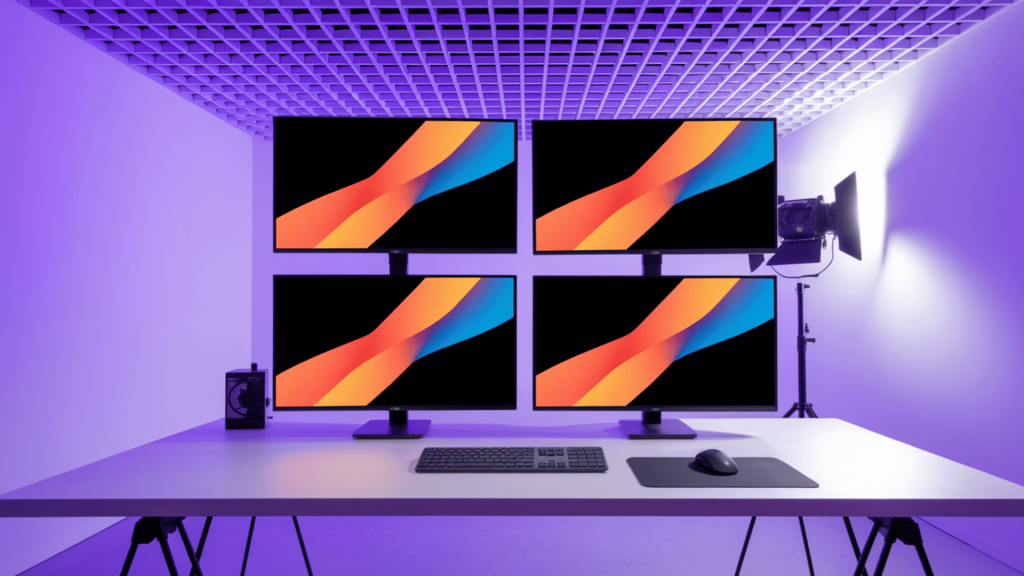
The right hardware choices help your four monitors stay aligned, stable, and easy to manage while supporting comfort, smooth performance, and a clean workspace for daily use.
1. Monitors for a Clean and Consistent Look
Using monitors with the same size, resolution, and bezel thickness helps keep screens aligned and easy to view.
When displays match, moving windows across screens feels smoother and less tiring on the eyes.
A consistent look also helps users stay focused, since text and visuals appear uniform across the entire 4-monitor setup during daily use.
2. Monitor Arms, Stands, and Desk Requirements
Monitor arms allow each screen to be adjusted for height, tilt, and spacing, which supports better posture and comfort. They also free up desk space compared to fixed stands.
Before choosing arms, check desk depth, weight limits, and VESA compatibility to make sure everything stays stable and secure over time.
3. Cables, Ports, and Power Management
A four-screen setup needs the right mix of ports and cables to work smoothly. DisplayPort, HDMI, and USB-C are commonly used, but the graphics card must support all connections.
Planning power outlets and using basic cable organizers helps prevent clutter, keeps connections reliable, and makes the workspace easier to manage.
Best 4 Monitor Layouts for Comfort and Productivity
A good layout keeps all four screens easy to see, reduces head movement, and helps you work longer without discomfort. Below are practical layout options based on comfort and daily use.
1. 2×2 Grid Layout
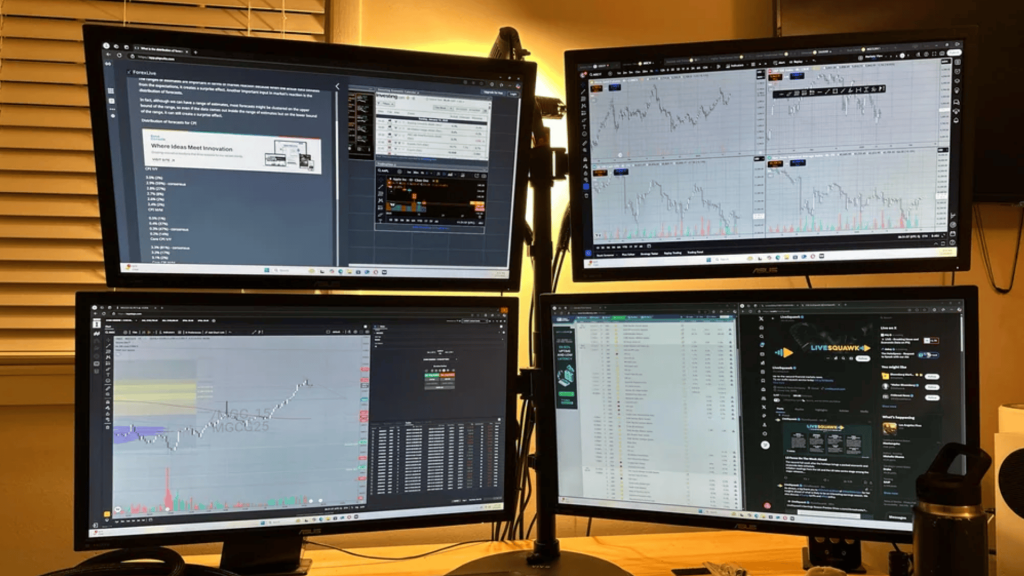
This layout places two monitors on the top row and two on the bottom, creating a balanced square shape.
It works well when all screens need equal attention throughout the day. Because each monitor sits at a similar distance, eye movement stays natural and predictable.
This helps reduce strain during long sessions. The grid layout is commonly used for data-heavy work, monitoring dashboards, or multitasking, where switching between screens happens often.
2. Center-Focused Layout With Supporting Screens
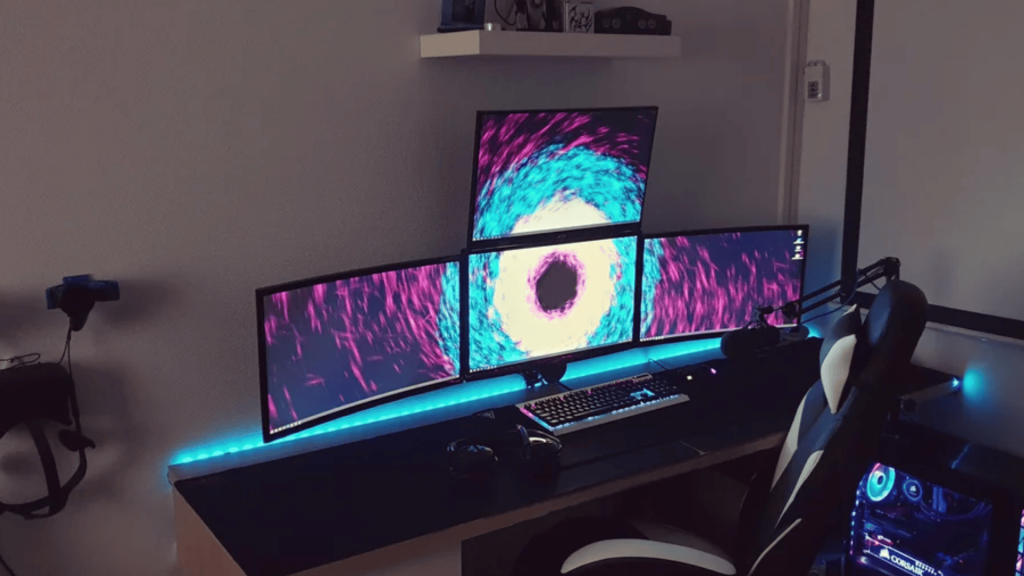
In this layout, one monitor sits directly in front as the main screen, while the other three support it from the sides and above.
Keeping the main display centered helps limit neck movement and keeps posture steady.
This setup works well for tasks like writing, editing, or coding, where one screen stays active, and others show tools, references, or background tasks.
3. Angled Surround Layout
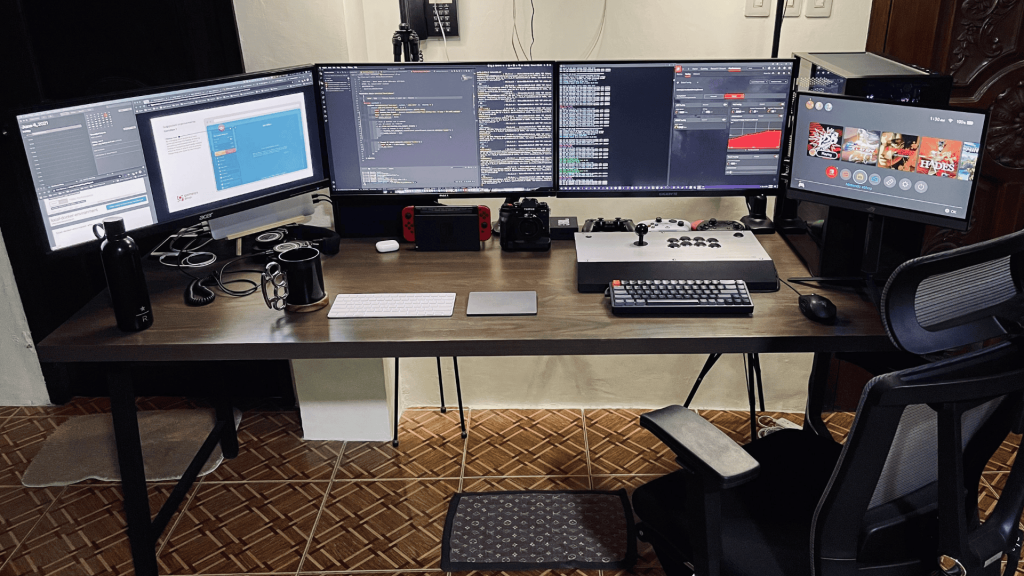
An angled surround layout places the side monitors slightly turned toward the user.
This positioning keeps all screens within a comfortable viewing range and reduces the need for sharp head turns. It helps maintain a relaxed posture during long work or gaming sessions.
This layout is useful when frequent glances between screens are needed without shifting the body or leaning forward.
4. Vertical Side Monitor Layout
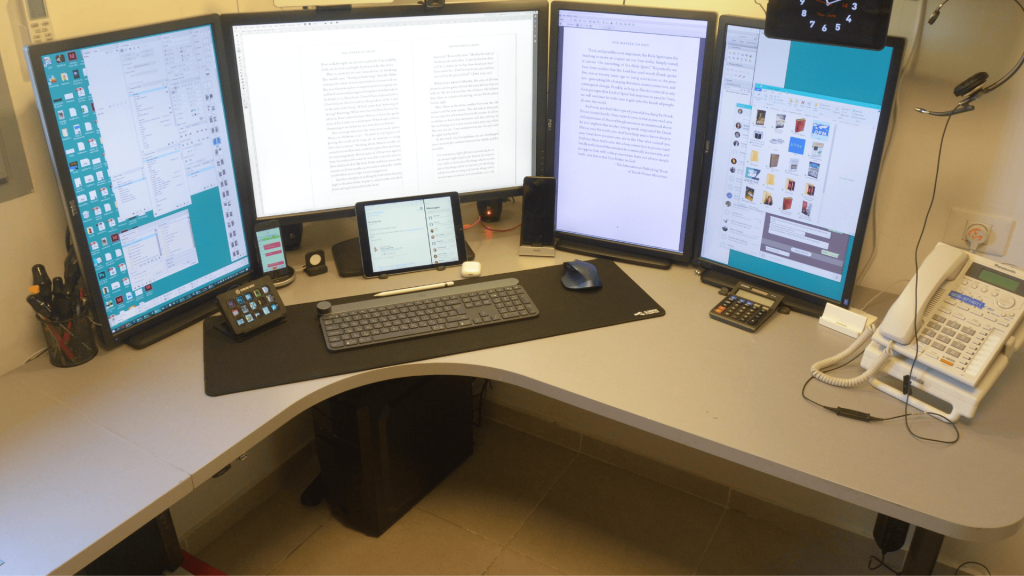
This layout uses one or two monitors rotated vertically on the sides. Vertical screens are useful for viewing long documents, reading code, or scrolling web pages.
They reduce the need for constant scrolling and keep more content visible at once.
This setup also saves horizontal desk space and works well when paired with a main horizontal screen for daily tasks.
5. Wide Arc Layout
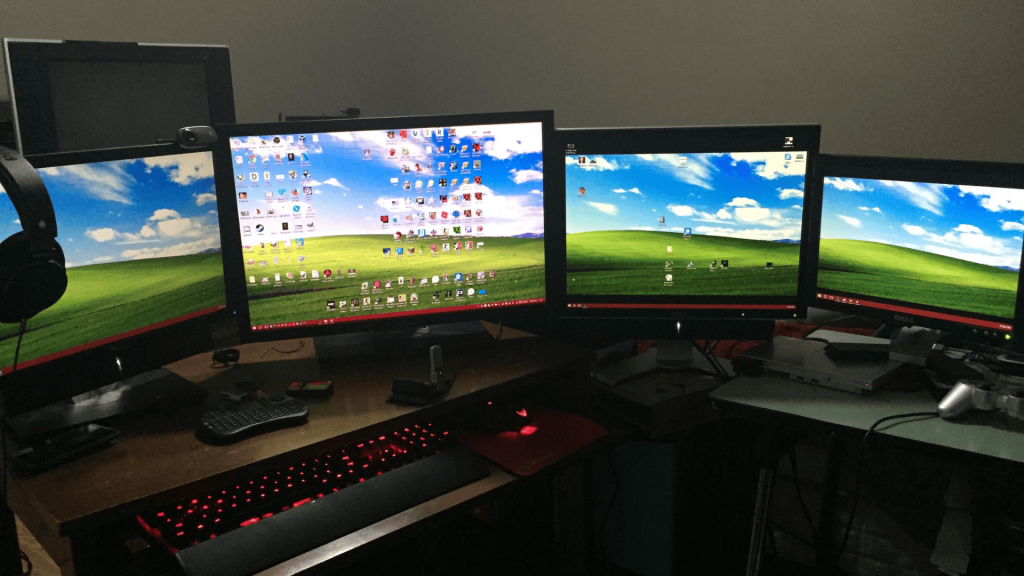
The wide arc layout arranges all four monitors in a gentle curve around the user. This keeps each screen at a similar viewing distance and helps reduce head movement.
It creates a smooth flow when switching between tasks.
This layout works best with adjustable monitor arms and enough desk space to allow proper spacing and comfortable viewing angles.
How to Position and Organize a 4 Monitor Setup?
Correct positioning and organization play a key role in making a four-screen workspace comfortable and easy to use every day.
Start by placing the main monitors so the top edge sits just below eye level, which helps reduce neck strain during long sessions.
Keep all screens at a similar distance to maintain steady viewing comfort and avoid eye fatigue.
Slightly angle the side monitors inward so you do not need to turn your head too much when switching tasks.
Chair height should be adjusted so your shoulders stay relaxed while typing. Keep cables tucked away using clips or trays to reduce desk clutter.
Adding soft lighting behind the screens helps lower glare and makes the setup easier on the eyes.
Best Display Settings for a 4 Monitor Setup
Proper display settings and simple software tools help all four monitors work together smoothly, making it easier to manage tasks while keeping text clear and screen movement natural.
1. Screen arrangement: Arrange all four monitors in your system settings to match their physical placement on the desk. This makes cursor movement smooth and predictable.
2. Primary display: Set the main monitor as the primary screen so important apps and menus always open where you expect them.
3. Resolution match: Use the same resolution on all monitors when possible to keep text size and scaling consistent.
4. Brightness balance: Adjust brightness and contrast so all screens look similar and do not strain your eyes.
5. Window tools: Use built-in or trusted window management tools to move and resize apps across monitors easily.
Common 4 Monitor Setup Problems and Fixes
Some setup issues appear only after daily use, but quick checks and small changes can fix them without rebuilding the entire four-screen workspace.
- Performance lag: Update graphics drivers to prevent slow response or dropped frames across multiple screens.
- Screen order errors: Recheck display numbering so cursor movement follows the correct screen path.
- Sleep wake issues: Adjust power settings to stop monitors from failing to wake properly.
- Mount stability: Tighten mounts and joints to prevent screens from shifting over time.
- Heat buildup: Ensure proper airflow around monitors and hardware to avoid overheating during long sessions.
Conclusion
A well-planned 4-monitor setup can make daily work feel more comfortable, organized, and easier to manage.
When screens are placed correctly, hardware is chosen carefully, and settings are adjusted properly, using four monitors becomes smooth instead of tiring.
This guide focused on practical steps that support good posture, clear viewing, and a clean workspace without adding extra complexity.
Small choices, like layout style, monitor height, and system settings, can make a big difference over time.
The goal is not just to fit four screens on a desk, but to create a setup that supports long hours without strain.
If you are planning or improving your own setup, take it step by step and adjust as needed.
If you found this blog post helpful, leave a comment below and share how your setup works for you.