Using only one operating system can feel limiting when your computer clearly has more power to offer without slowing down daily tasks.
Many people search how to dual boot Windows and Linux because they want Windows apps while also enjoying Linux speed and control.
This setup lets you keep familiar tools, try Linux safely, and switch systems at startup without removing anything important.
I will be telling you what dual booting actually feels like, what usually goes wrong, and how people handle it in real situations.
You will understand if this setup matches your needs, comfort level, and long-term plans before touching any settings.
But before beginning, it helps to get a clear picture of what dual booting involves, so starting with the basics matters.
What You Should Know Before Dual Booting Windows and Linux?
Dual booting means a computer runs both Windows and Linux and lets you choose which one loads when the system starts.
This setup works best for people who need Windows apps for work but still want Linux for daily use or learning.
You should always install Windows first because it can overwrite boot files if installed after Linux.
Most Linux installers automatically detect Windows and add a boot menu, saving effort and reducing manual fixes later.
Windows updates can sometimes reset the boot screen, so knowing basic recovery steps helps avoid stress during sudden boot issues.
You also need to disable Windows Fast Startup, as it can lock files and cause access issues in Linux later.
System Requirements for Dual Booting Windows and Linux
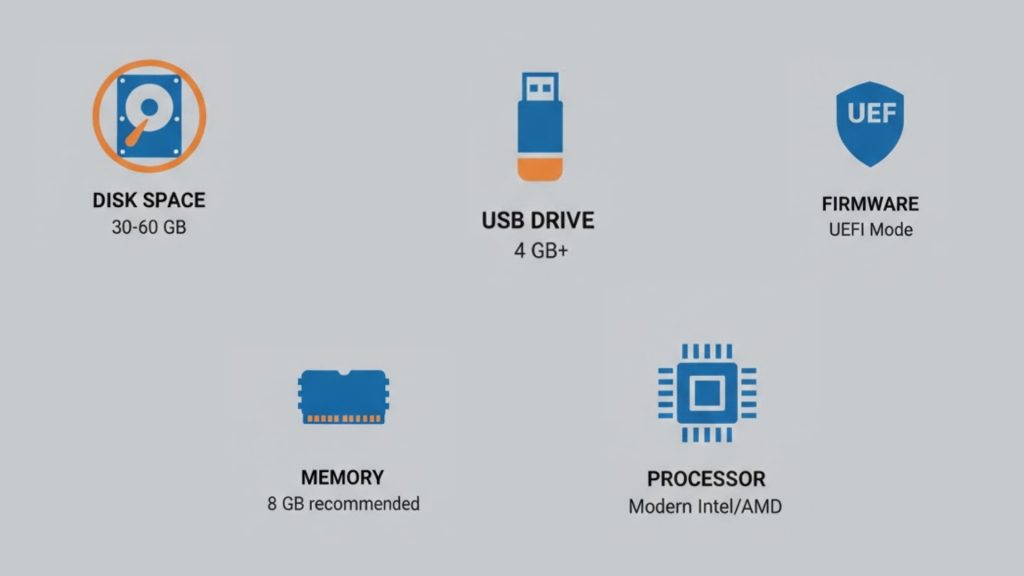
Before you start dual-booting, your computer must meet a few basic needs so both Windows and Linux run smoothly without random errors.
- Disk space: You should have at least 30 GB free for Linux, though many users keep 50 to 60 GB to avoid storage issues later.
- Memory: Systems with 4 GB of RAM can work, but 8 GB of RAM feels smoother when switching between systems and running apps side by side.
- Processor: Any fairly modern Intel or AMD processor from recent years handles dual-boot setups fine without slowing down daily tasks.
- Firmware type: Your PC should use UEFI mode instead of legacy BIOS, as UEFI reduces boot problems during installation.
- USB drive: A USB drive with at least 4 GB of free space is required to create the Linux installer before starting the setup process.
How to Dual Boot Windows and Linux: A Step-by-Step Guide
This step-by-step guide shows how to dual-boot Windows and Linux safely, using clear actions so you avoid confusion during setup.
Step 1: Prepare Windows Before Installation
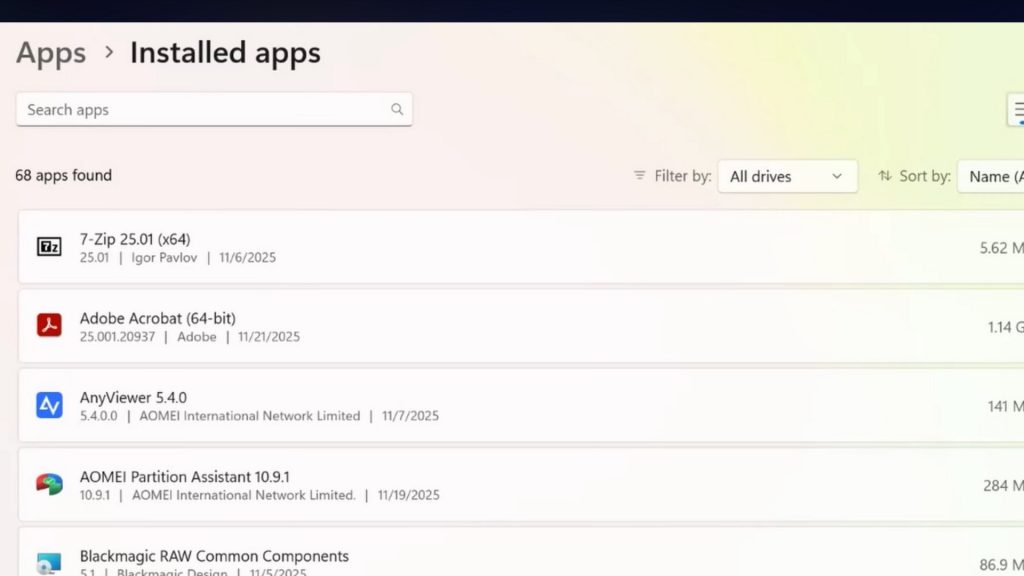
Before installing Linux, you need to prepare Windows properly, because rushing this part causes most dual boot problems reported by beginners online.
Start by backing up important files, then open Disk Management to shrink your main drive and create empty space for Linux installation later.
You should also disable Windows fast startup and turn off BitLocker, since both settings can block disk access during Linux setup and cause errors.
Step 2: Create a Bootable Linux USB Drive
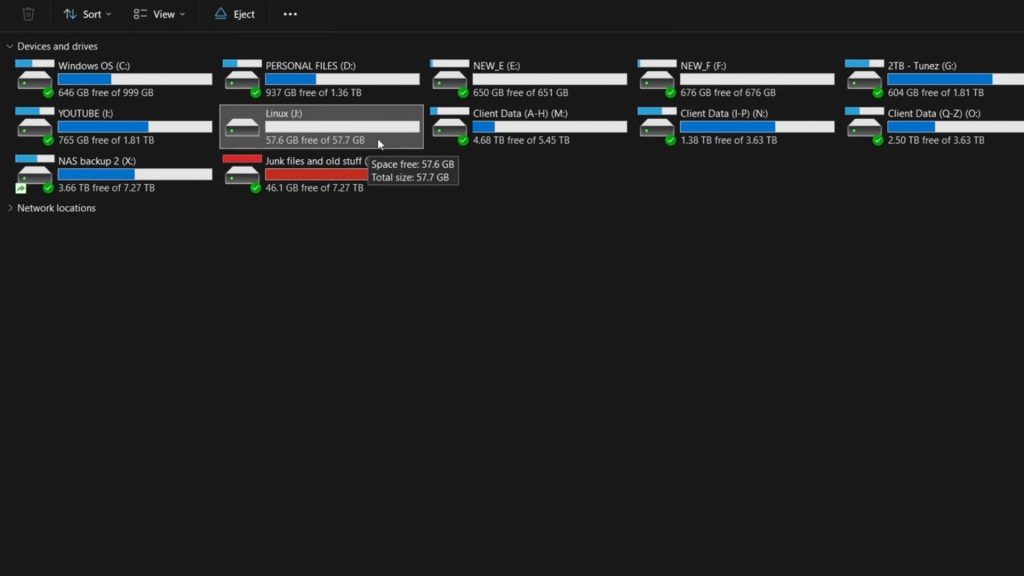
You now need a USB drive to load Linux, since the installer runs from it before anything gets installed on your computer.
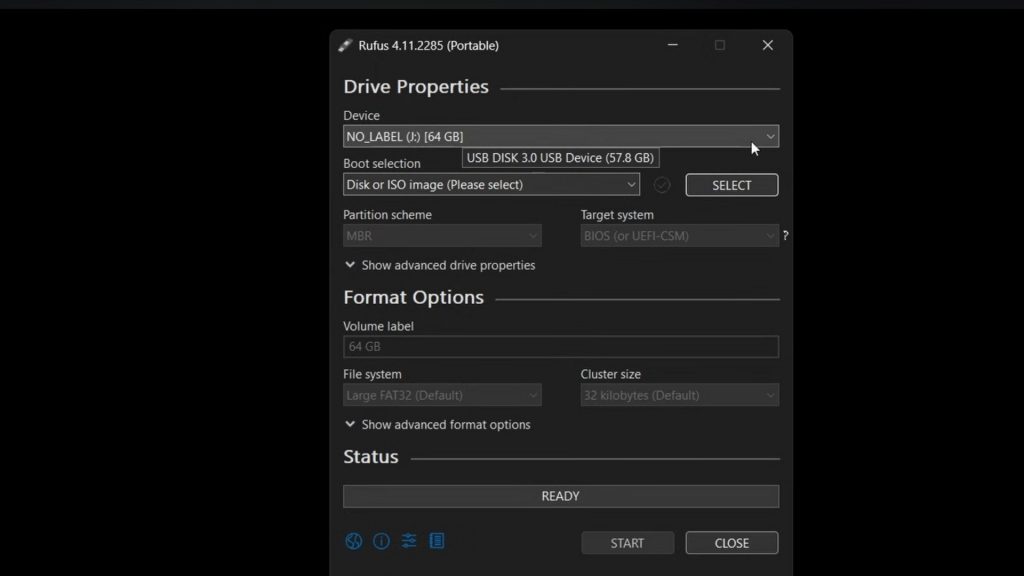
Download a Linux version like Linux Mint or Ubuntu, then use a tool like Rufus to write the file onto the USB drive.
Make sure the USB drive is empty, because the process deletes everything on it, and double-check you picked the correct drive.
Step 3: Boot From the USB and Start the Installer
Insert the Linux USB, restart the computer, and open the boot menu using the correct key, which is often shown briefly on screen.
Select the USB drive, then choose the option to try or install Linux, since this loads the installer without changing files yet.
If you see the Linux desktop load correctly, that confirms the USB works, which is important before touching any disk options.
Step 4: Choose the Install Alongside Windows Option
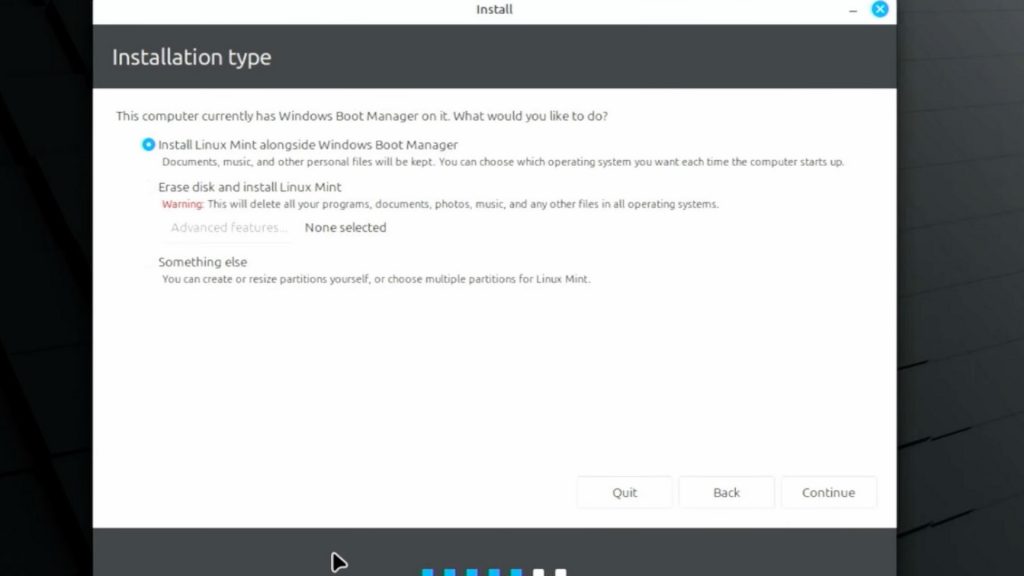
When the installer opens, select the option that installs Linux alongside Windows, since this is the safest choice for beginners.
This option automatically uses the empty space you created earlier, so you do not need to manually touch partitions or sizes.
Double-check that Windows is listed correctly on screen, because this confirms the installer detected it and will keep it safe.
Step 5: Set Language Time Zone and User Details
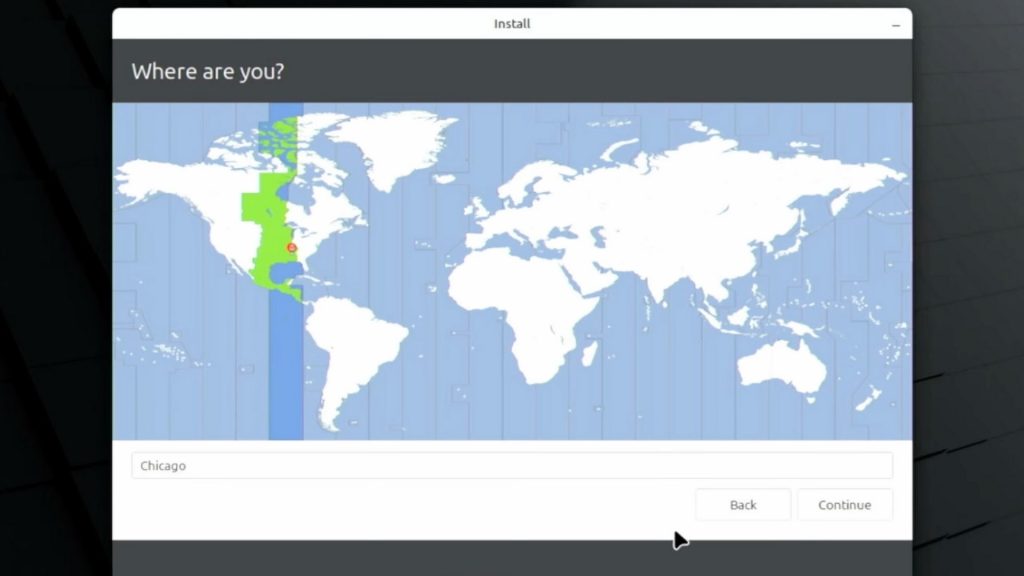
During this step, choose your language, keyboard layout, and time zone, since these settings control typing, time display, and updates.
Next, create a username and password, keeping the name simple and lowercase, because Linux uses it for system access later.
You can also decide if the system logs in automatically or asks for a password every time you start Linux.
Take your time here, because changing user details later is possible, but feels confusing for many first-time users.
Step 6: Let Linux Install and Wait Patiently
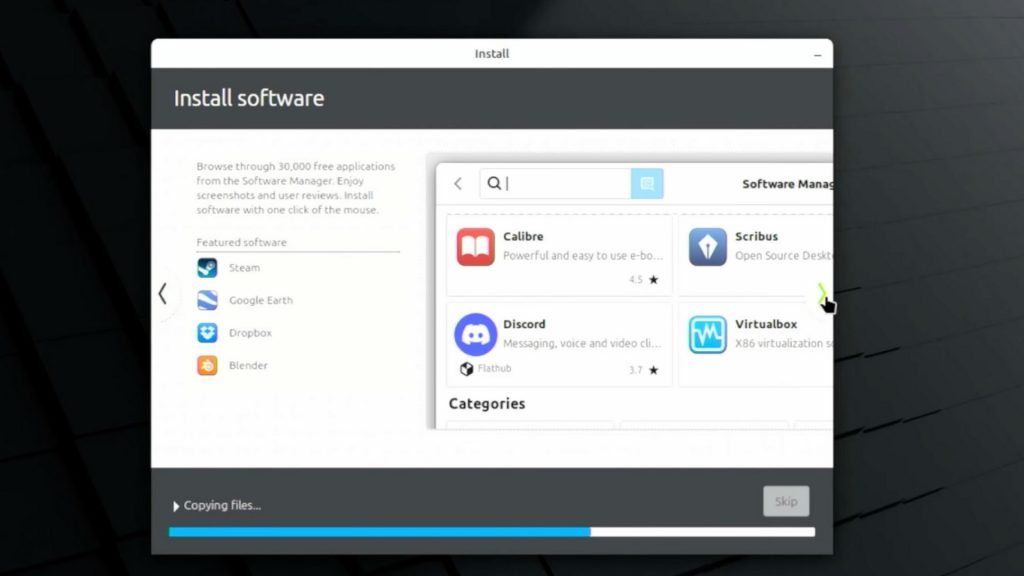
After confirming your choices, the installer will begin copying files and setting up the Linux system in the empty space.
This part takes time, so avoid clicking around or restarting, even if the progress bar feels slow or looks stuck briefly.
You may see slides or tips during installation, but nothing needs your input until it finishes completely. Once done, the installer will ask for a restart, which is your signal that the main setup completed correctly.
Step 7: Restart and Check the Boot Menu
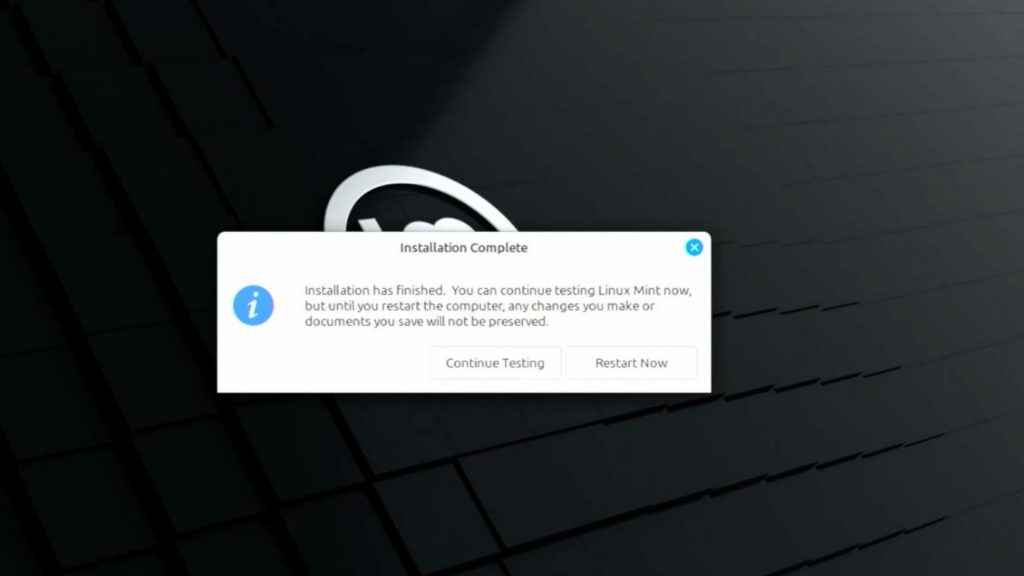
After installation finishes, remove the USB drive, then restart the computer so the new boot menu can load properly without errors.
When the system starts, you should see options for Windows and Linux, which confirms that both systems are installed correctly on your machine.
Select each system once, let it load fully, and check files and internet access to confirm everything works as expected.
If one option fails to boot, do not panic, since fixes often only need the same USB.
Step 8: Update Both Systems After First Boot
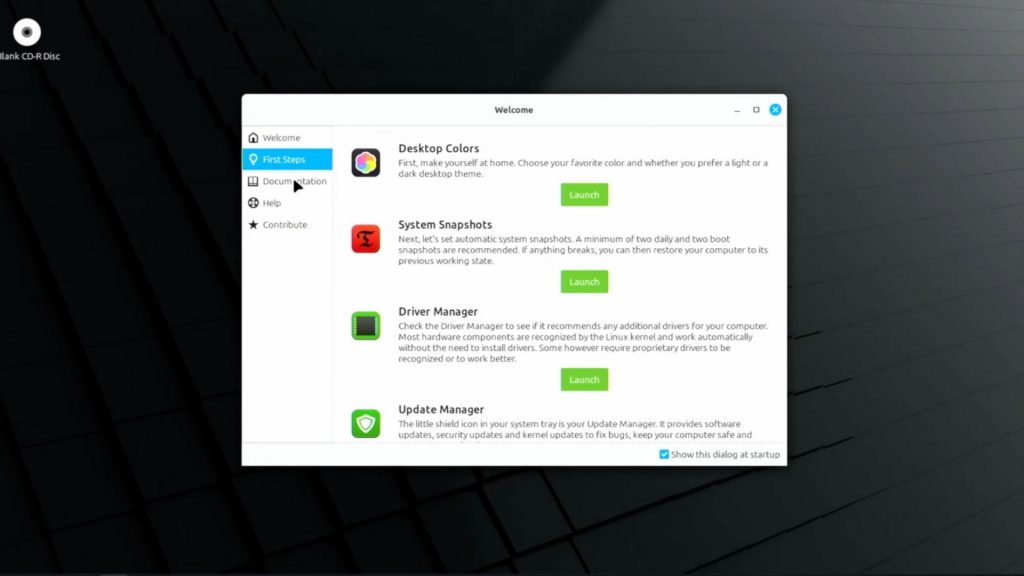
Once both systems boot correctly, start by updating Linux, since fresh installs often need fixes and driver updates right away.
Then boot into Windows and let pending updates finish, because unfinished updates can later affect the boot screen behavior.
After updates, restart once more and confirm the boot menu still shows both systems, which helps catch problems early.
Doing this now saves headaches later, when updates stack up and feel harder to fix.
For a more visual guide, check out a visual guide by Ask Your Computer Guy.
Common Issues People Face When Dual Booting
People who try dual booting often hit similar problems early, mostly because Windows and Linux behave differently and do not always play nicely.
- Boot menu missing: Some users report Windows updates removing the Linux boot option, forcing them to fix the menu using a USB tool.
- Fast Startup trouble: Windows Fast Startup can lock the main drive, making it show as read-only inside Linux until the setting is disabled.
- Time mismatch problem: Many users notice the wrong system time after switching systems, since Windows and Linux handle clocks in different ways.
- Secure Boot blocks Linux: Secure Boot may stop Linux from loading at startup, especially when the distro is unsigned, or setup steps were skipped.
- Wrong partition choice: Beginners sometimes select the wrong disk during setup, which causes panic, even though data can often be recovered later.
Community Discussion and Real User Experiences
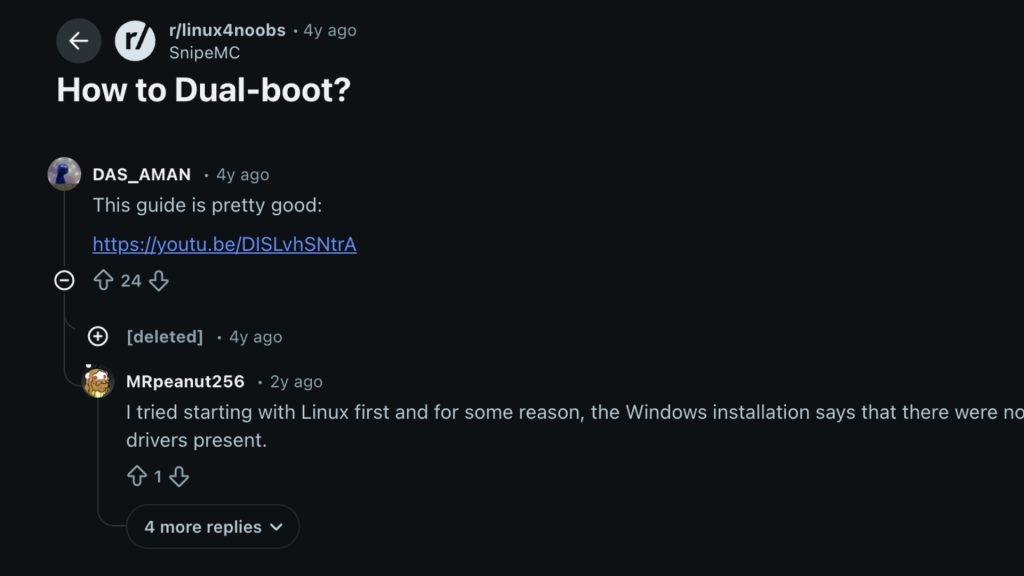
Many users who searched how to dual-boot Windows and Linux shared honest reviews on Reddit after testing the setup on personal machines.
One Reddit user said they kept Windows only for paid tools, while Linux became their daily system because it felt faster and cleaner.
Another user shared how a Windows update removed Linux from the boot menu, but a USB repair fixed everything without reinstalling either system.
Some beginners admitted they felt nervous at first, mostly about disk space, but following guides slowly helped them avoid data loss.
A few users strongly suggested using two drives instead of one, saying it made fixing boot problems less stressful later.
Most people agreed that the setup works well if you prepare early and do not rush through installation screens blindly.
Pros and Cons of Dual Booting Windows and Linux
Dual booting has clear upsides and downsides, and knowing both helps you decide if this setup fits your daily computer use.
| Pros | Cons |
|---|---|
| Use Windows-only apps and Linux tools on one computer. | Restart needed every time you switch systems. |
| Full hardware performance in both systems. | Windows updates may remove Linux from the boot menu. |
| Linux offers better privacy control. | Disk space must be split carefully. |
| An easy way to try Linux safely. | Boot fixes may be needed later. |
| No virtual machine slowdown. | Setup mistakes can cause stress. |
Conclusion
Dual booting Windows and Linux can work well when you understand your comfort level and accept that two systems need attention.
Some people enjoy switching systems daily, while others prefer using one main system and keeping the second only for special tasks.
Test updates slowly, keep recovery tools ready, and check out user feedback before changing major settings.
If dual booting feels heavy later, options like virtual machines or built-in Linux tools inside Windows can still meet many needs.
At the end, the best setup is the one that fits how you work, learn, and use your computer every day.
Have you tried dual-booting before, or are you planning to try it soon? Tell us, share with us in the comments below!