Your computer feels instant when it works and frustrating when it fails, yet few people ask what controls everything behind that first screen.
Most people click apps, save files, and shut systems down daily without stopping to think about where this powerful software actually lives.
That question matters because storage location & RAM affect speed, stability, and how smoothly your device reacts during normal use.
I will tell you where on a computer is the operating system generally stored and why that choice shapes the overall experience.
You will gain clarity on how systems manage hardware, memory, and startup behavior without needing deep technical knowledge.
Before going further, it helps to understand the operating system itself, since everything else depends on how this core software is handled.
What is an Operating System & Why Its Location Matters?
An operating system (OS) is the main software that enables a computer to communicate with its hardware and lets users run apps, save files, and use devices smoothly.
It works like the boss of the system, telling the processor, memory, and storage what to do so everything runs without confusion or slowdowns.
Where the operating system is stored matters a lot because it affects how quickly the computer starts, how stable it feels, and how secure the data remains.
The operating system resides in permanent storage, not temporary memory, so it remains saved even when the computer is fully powered off.
Here is why the storage location matters in real life:
- Faster drives help the system start quicker and open apps with less waiting.
- Slow or damaged storage can cause freezes, boot errors, or sudden crashes.
- Secure storage helps protect system files from unwanted changes and shady attacks.
- A healthy drive makes updates, fixes, and backups easier to do without drama.
Where on a Computer is the Operating System Generally Stored?
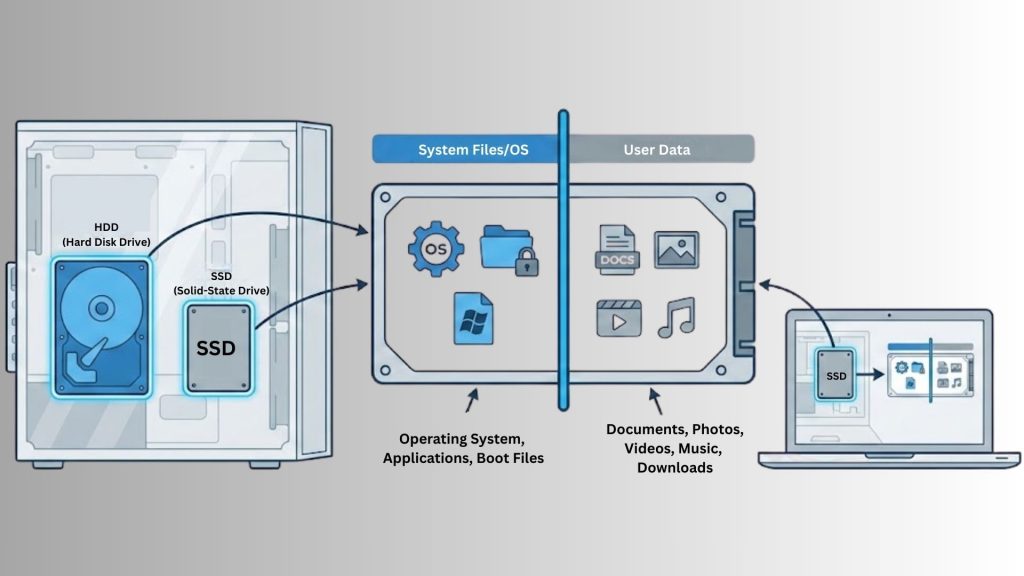
On most computers, the operating system is stored on the main internal storage drive that comes installed inside the system during setup.
This storage is non-volatile, which means the operating system remains saved even when the computer is shut down or unplugged.
Usually, this drive is a Hard Disk Drive (HDD) or a Solid-State Drive (SSD), depending on the computer type and build year.
The operating system files reside in special folders and partitions that the system reads first at startup to load properly.
Modern devices store their operating systems on built-in flash storage that stays fixed inside the device and cannot be removed by normal users.
This storage is designed to keep system files safe, stable, and ready to load every time the device powers on.
This setup helps ensure updates install safely and keeps the system running even if user files are corrupted.
Operating System Storage in Different Types of Computers
Different computers store their operating systems based on hardware design and the level of system control users are allowed to have.
On Windows computers, the operating system is stored on the main internal drive, usually inside system folders on an HDD or SSD, commonly known as the C: drive.
On Mac computers, macOS is stored on internal storage, mostly SSDs in newer models, inside protected system areas that users cannot change freely.
How Does the Computer Access the OS During Startup?
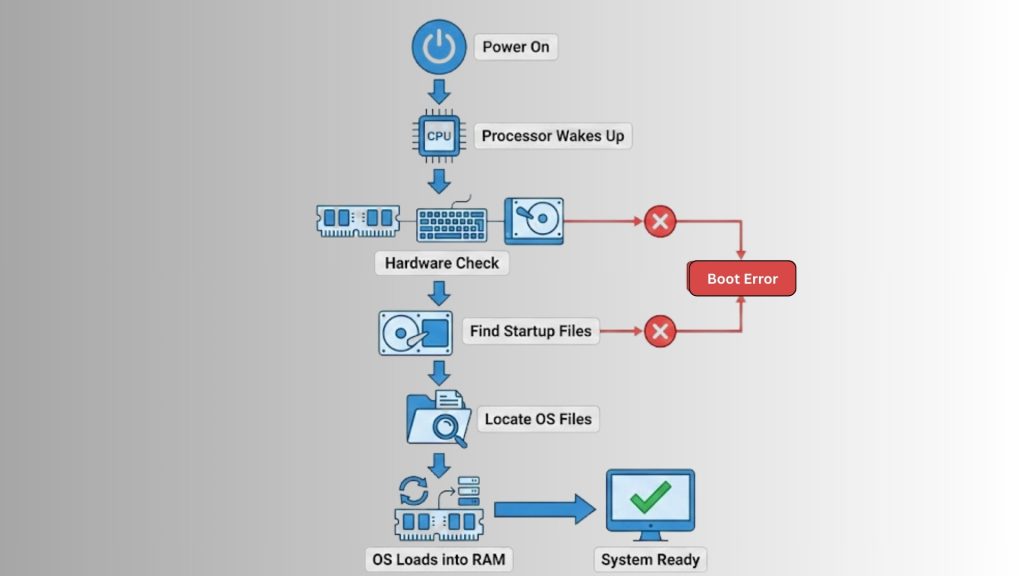
When you press the power button, the computer starts a fixed startup process that helps it safely find and load the operating system.
The processor wakes up first and checks basic hardware components such as memory, the keyboard, and storage to ensure everything is functioning correctly.
After this check, the system checks the internal storage drive for the startup files saved during operating system installation.
These startup files tell the computer where the main system files are stored and how to load them into memory.
Once the core files are found, the operating system begins loading into RAM, so programs and services can start working.
If anything in this process breaks, the computer may freeze, restart, or show boot error messages on the screen.
Role of BIOS and UEFI in Finding the Operating System
BIOS and UEFI are small system programs that run first and help the computer locate the operating system before anything else can load.
- System startup control: BIOS or UEFI starts as soon as the power button is pressed and prepares the system to begin the boot process safely.
- Hardware check: It checks key components such as memory, the keyboard, and storage drives to confirm they are working before loading system files.
- Boot device selection: BIOS or UEFI follows a preset boot order to find the correct internal drive that holds the operating system files.
- OS handoff process: Once the startup files are found, control is passed to the operating system so it can load into RAM and take over.
Is the Operating System Stored in RAM or Loaded Into RAM?
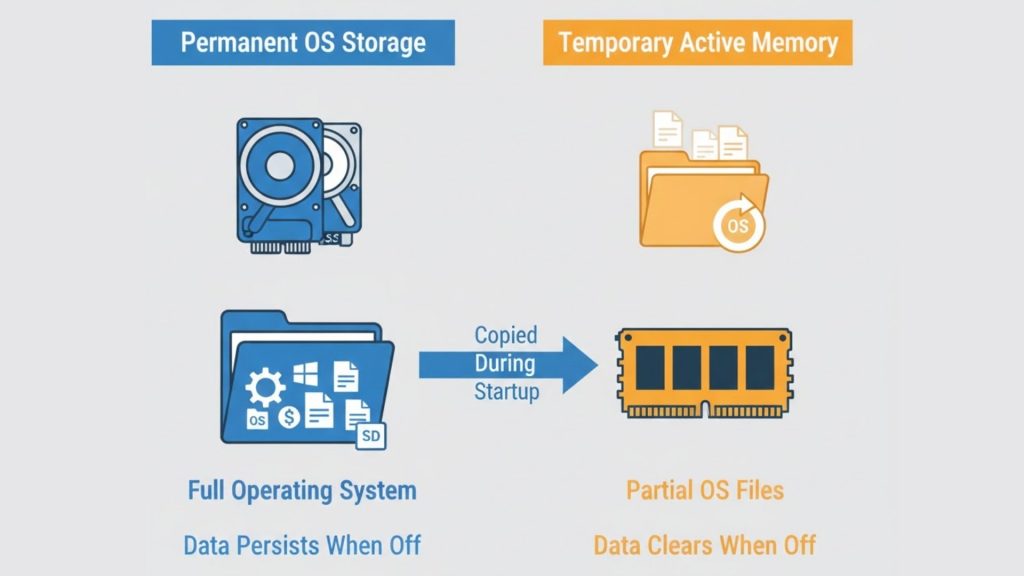
The operating system is not permanently stored in RAM because RAM clears all data when the computer shuts down or loses power.
Instead, the operating system is saved on internal storage, and only the required parts are copied into RAM during startup.
RAM is used because it is much faster than storage drives, which helps the system respond quickly to clicks, commands, and app actions.
Only active parts of the operating system stay in RAM, while the rest remain on the storage drive until needed later.
This setup allows the computer to balance speed and stability without filling memory with files that are not being used at that moment.
So while the operating system runs from RAM, its permanent home always stays on internal storage.
What Happens If the Operating System Storage Fails?
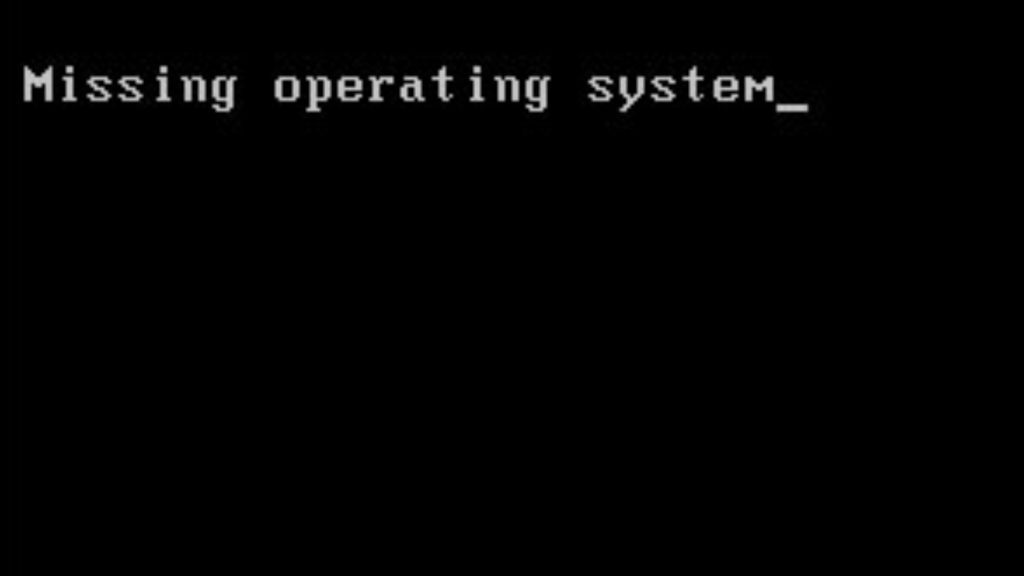
When the operating system’s storage fails, the computer cannot find the required system files, preventing startup and displaying errors instead of loading normally.
This failure can occur due to physical damage, worn-out drives, file corruption, or sudden power cuts during updates or shutdowns.
When storage fails, users may see black screens, restart loops, missing system messages, or constant crashes that make the computer unusable.
In many cases, personal files remain on the drive, but accessing them becomes difficult until the storage issue is fixed properly.
Fixing the problem often requires repairing the drive, replacing it, or reinstalling the operating system using recovery tools or backup files.
Regular backups and drive health checks help reduce data loss and speed recovery if the operating system’s storage fails suddenly.
Can an OS Be Moved or Reinstalled to Another Drive?
Yes, an operating system can be moved or reinstalled to another drive, but the method depends on the tools available, system setup, and user comfort level.
- OS cloning method: This copies the entire operating system from the old drive to the new one, keeping files, apps, and settings intact.
- Fresh installation method: This installs the operating system on a new drive, removing old data and providing a clean system setup.
- Backup and restore method: This saves system data first, then restores it after installing the operating system on the new drive.
- Boot settings update: After moving the operating system, update the system boot settings so the computer knows which drive to use.
Each method works, but backups are critical to avoid data loss during the move.
Conclusion
Understanding where on a computer is the operating system generally stored helps you see your computer as more than just a screen with apps and files.
When storage works well, systems feel smooth, reliable, and easier to trust during daily tasks like work, study, or casual use.
I believe small bits of knowledge like this help you make better choices when problems arise or upgrades become necessary later.
You now know why storage health matters, why memory behaves differently, and why startup issues often trace back to system files.
There are still topics like storage care habits, system cleanup routines, and safe upgrade planning that also play a big role long term.
Have you ever faced a startup issue or a slow system problem related to storage? Tell us, share with us in the comments below.