Your iPhone says storage is full, apps feel slow, and one question keeps popping up: how do I clear app cache on iPhone?
If you search online, you’ll see mixed answers across forums and comment threads. That confusion comes from how iOS handles cache behind the scenes.
Unlike Android, there is no single button that clears the cache for every app. Still, users have found safe ways to reduce cached files and fix common issues.
In this blog post, I break down what app cache really means on iPhone and what you can actually do about it.
The steps are simple, approved by Apple’s system rules, and backed by real user experiences.
By the end, you’ll know which methods work, which ones don’t, and how to free space without risking your data
What Does App Cache Mean on iPhone?
App cache on iPhone refers to temporary files that apps save to load content faster. These files can include images, videos, login details, or browsing data used again and again.
Over time, this cache can grow large, especially for social media, streaming, and browser apps.
While cache helps apps run smoothly, too much of it can take up storage and sometimes cause apps to slow down or act up.
On iPhone, Apple manages most cache automatically, which is why users don’t see a clear “clear cache” button.
Knowing how cache works makes it easier to understand how to clear cache on iPhone, since most cleanup happens through app settings, browser options, or reinstalling apps.
Once you know where the cache hides on iOS, freeing up storage and fixing minor app issues becomes much simpler.
Can You Clear App Cache on iPhone?
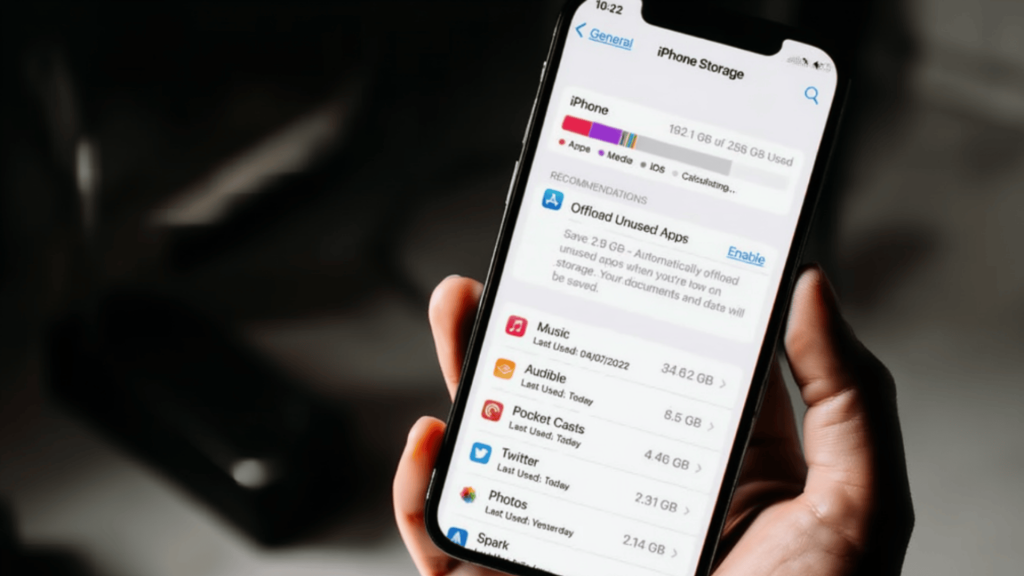
No, iPhone doesn’t provide a system-wide option to clear app cache, unlike some other devices.
iOS doesn’t include a universal “clear cache” button, as Apple manages cache in the background for smooth app performance without user involvement.
While clearing cache for all apps isn’t possible with one click, some apps allow you to clear cache within their settings.
And yes, we will not be telling you the ways to jailbreak your phone or install Android on it; we’ll keep it simple.
Understanding that iOS doesn’t offer a simple cache-clearing feature helps set realistic expectations.
With this in mind, let’s move on to practical methods to clear the cache from any app on iPhone and improve storage and app performance.
How to Clear App Cache on iPhone?
Use these proven methods to reduce cached data, free storage, and fix slow apps without risking personal data or changing necessary iPhone settings.
1. Clear Cache from iPhone Storage Settings
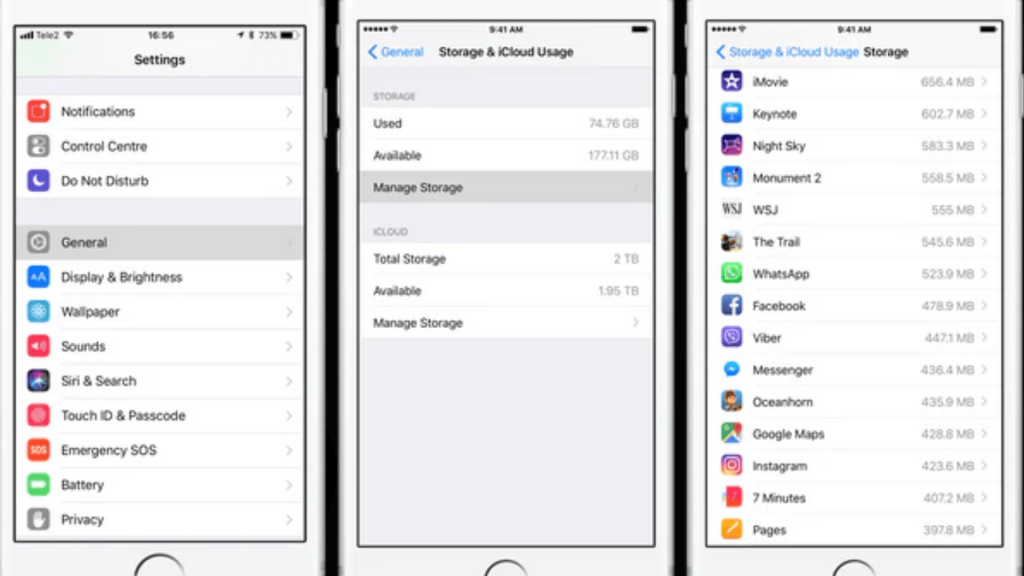
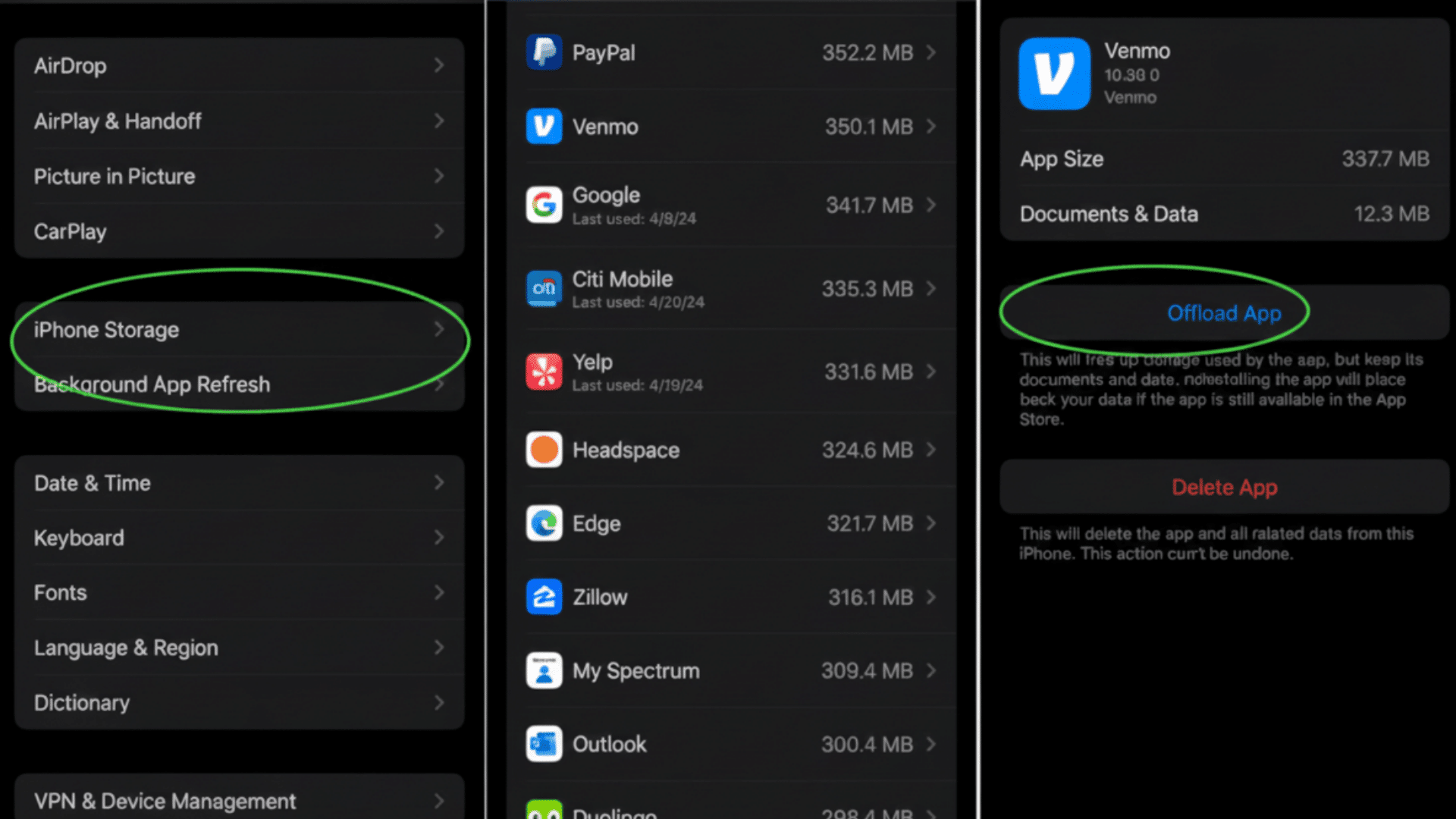
This method helps you see which apps are using the most space. Go to Settings > General > iPhone Storage and tap on an app from the list.
Some apps show how much space they use, including cached data. If the app supports it, you may see an option to offload it.
This removes the app but keeps your data. It helps reduce storage use without losing important information.
2. Delete and Reinstall Apps
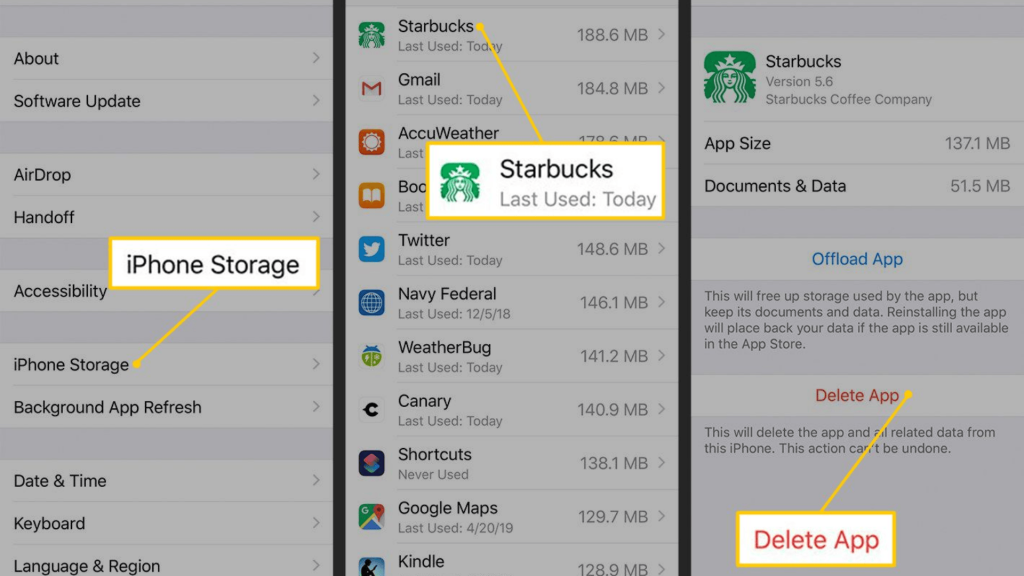
Deleting is the most reliable way to clear the app cache on an iPhone. When you delete an app, all cached files, all app data linked to it are removed.
After reinstalling, the app starts fresh without old temporary data. Many users recommend this method when an app takes up too much space or starts acting slowly.
You should only do this after checking that important data is backed up or linked to your account.
3. Use the Offload App Feature
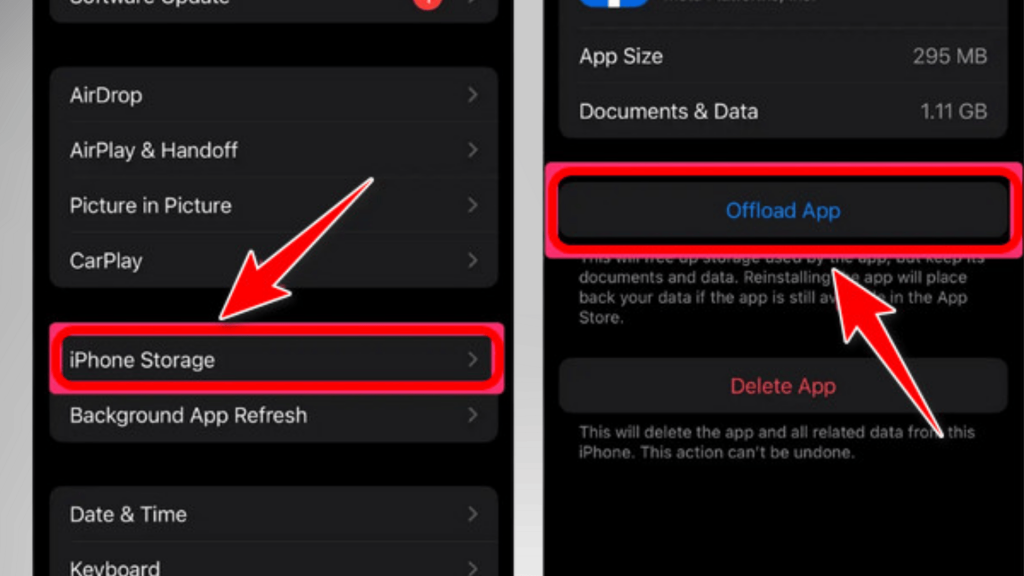
Offloading is useful if you want to clear some storage without deleting app data. When you offload an app, iOS removes the app itself but keeps documents and settings saved.
You can turn this on manually from iPhone Storage or allow iOS to do it automatically.
This method helps reduce space used by apps you don’t open often, while making it easy to reinstall them later.
How to Clear Safari Cache on iPhone?
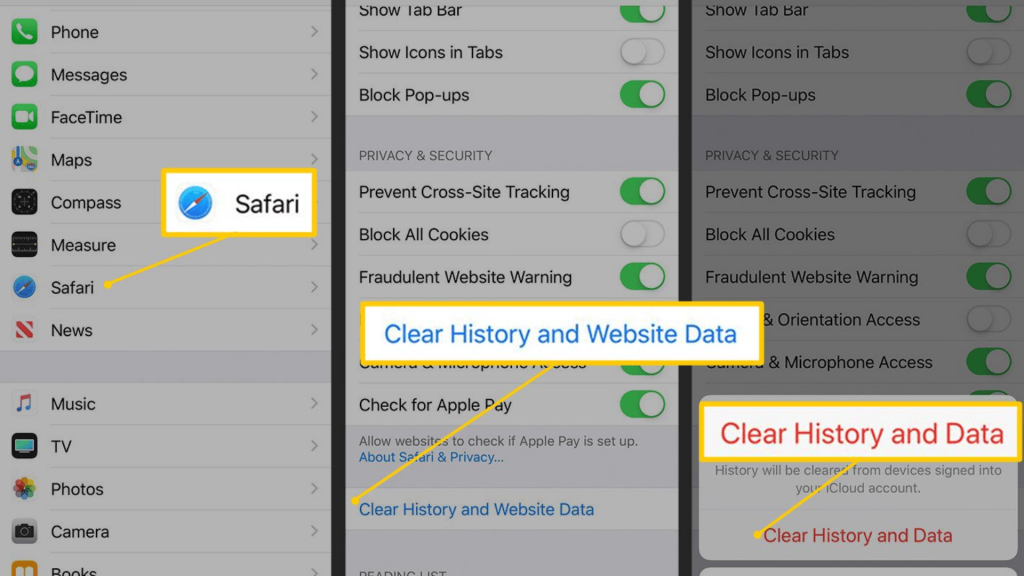
Safari stores temporary website data to help pages load faster during future visits. Over time, this data can pile up and cause pages to load slowly or display errors.
Clearing the Safari cache helps refresh browsing data and can fix common issues without affecting your saved information.
- Go to Settings and tap Safari.
- Select Clear History and Website Data.
- Confirm to remove cached files, cookies, and browsing history.
After clearing the cache, Safari often feels smoother and more responsive. Your bookmarks, saved passwords, and autofill details remain safe.
Many users follow this step when websites stop loading correctly or after extended browsing sessions to keep Safari running smoothly.
Community Discussions: Real User Questions & Answers
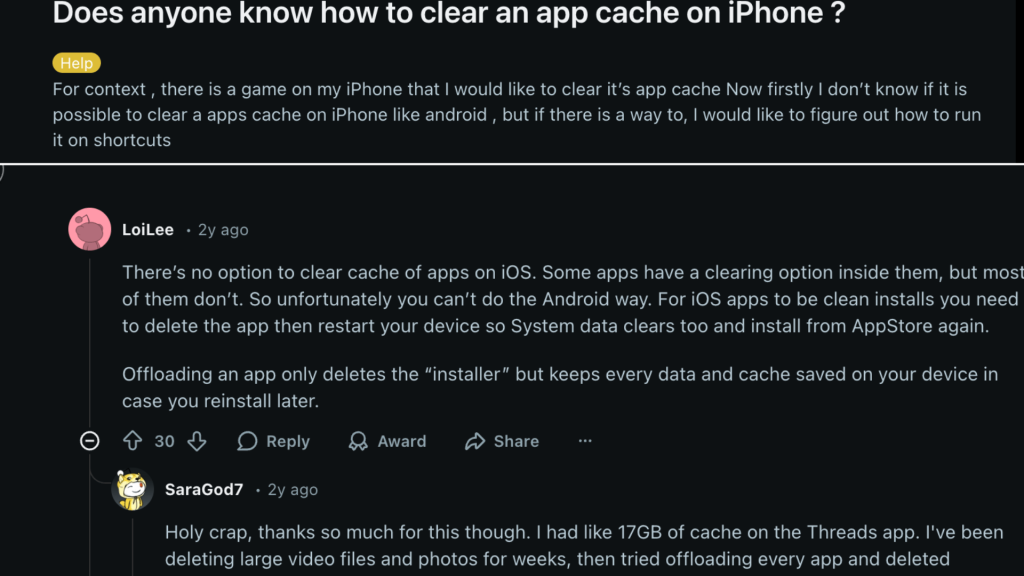
Community discussions offer valuable real-world advice for handling app cache on iPhone.
Users in forums like Reddit and Apple Support Communities frequently share what worked for them, giving you insights into common problems and solutions.
A popular question is how to clear cache, and most users find there’s no single “clear cache” button in iOS.
Instead, the most reliable solution shared is deleting or offloading apps that accumulate a lot of data.
Many users report freeing up significant storage by removing apps that quietly store large amounts of cached data over time.
These community discussions help clear up confusion and provide realistic expectations for what you can do to fix slow apps or storage issues.
Real user feedback fills in gaps left by official guides, offering practical tips and solutions when iPhone storage problems pop up unexpectedly.
Should You Use Cache Cleaner Apps?

No, cache cleaner apps are not recommended for iPhone. iOS already manages cache in the background to ensure apps run smoothly, and third-party apps cannot access system files safely.
These tools often promise improvements but usually fail to make a noticeable difference.
Many users report little to no storage improvement after using cache cleaner apps. Additionally, some of these apps request unnecessary permissions, raising privacy concerns.
Apple doesn’t support any apps that claim to clean system cache, as their effectiveness is often misleading.
For better results, it’s safer to rely on built-in iPhone options like deleting apps, offloading unused apps, or clearing Safari data.
These methods follow iOS guidelines and ensure you’re managing your device’s storage without compromising security or privacy.
When Clearing Cache Helps vs. When It Doesn’t?
Use this table to quickly understand when clearing app cache can fix common iPhone issues and when the problem needs a different solution or system-level fix.
| Situation | Clearing Cache Helps? | Reason |
|---|---|---|
| App running slow | Yes | Old cached files can affect app performance |
| App crashing or freezing | Yes | Clearing the cache can remove corrupted temporary data |
| iPhone storage is almost full | Yes | Cached files often take up hidden storage |
| Poor internet connection | No | Cache does not affect network issues |
| iOS system bugs | No | These need updates or system fixes |
| App feature not working | Sometimes | Depends on the app, not always cache-related |
Tips to Keep iPhone Storage Under Control
These simple habits help reduce storage issues, limit unnecessary cached data, and keep your iPhone running smoothly without relying on risky tools or complex settings.
- Review app storage regularly: Check Settings > General > iPhone Storage to spot apps quietly using more space than expected.
- Remove unused apps: Apps you no longer open can still hold data, so deleting them helps keep storage balanced.
- Limit background app refresh: Turning this off for rarely used apps reduces hidden data activity.
- Manage media-heavy apps: Social and streaming apps often store extra files, so review their storage use from time to time.
- Restart your iPhone occasionally: A restart helps refresh system processes and keeps performance steady without manual cleanup.
Conclusion
Clearing app cache on iPhone is less direct than many users expect, but it is still manageable once you know the right steps.
iOS relies on automatic control, which means users must work within Apple’s system instead of using one-click tools.
Methods like checking app storage, offloading apps, deleting and reinstalling apps, and clearing Safari data give the most reliable results.
Community discussions also help set realistic expectations and prevent wasted effort on tools that do not work.
By using built-in settings and simple habits, you can keep storage under control and reduce common app issues.
If you have tried any of these methods or found another helpful tip, leave a comment below and share your experience with other readers.