Your monitor is more than just a screen on your desk. It’s the main way you see, interact with, and experience everything your computer does.
From typing reports to editing photos, streaming shows, or playing fast-paced games, that panel of pixels shapes how clear, smooth, and comfortable everything feels.
A good display can reduce eye strain, improve focus, and make everyday tasks more enjoyable.
Over time, computer monitors have evolved from large, bulky displays to thinner, more refined screens designed for modern setups.
Today’s monitors are designed for a wide range of needs, from office work and creative projects to gaming and general use.
Your monitor can directly affect productivity at work and immersion during play.
Read on to learn what a computer monitor is, how it works, how it has changed, and how to choose the right type and specs for your setup.
About Computer Monitor
A computer monitor is an output device that displays visual content from a computer, such as text, images, videos, and interfaces.
It serves as the primary means for users to view and interact with the results of the computer’s processing.
The monitor connects directly to the graphics processing unit (GPU), either a dedicated video card or integrated graphics on the motherboard.
It is connected through cables such as HDMI, DisplayPort, USB-C, or older VGA standards.
The GPU renders frames and sends them to the monitor, which then lights up pixels to form the picture users see.
For anyone new to hardware, the monitor can simply be understood as the computer’s screen.
It is the part that shows everything the machine is doing so people can read, watch, and control it.
How Do Computer Monitors Work?
Computer monitors work by receiving digital image data from the computer’s GPU and converting it into visible output on the screen.
The GPU generates image frames and sends them through connections such as HDMI, DisplayPort, or USB-C.
Inside the monitor, a controller interprets these signals and activates individual pixels to form images.
Refresh rate defines how often the screen updates per second, influencing motion smoothness, while response time measures how quickly pixels change colors, reducing blur or ghosting.
Correct cable selection, proper input settings, and updated drivers help maintain stable performance.
Compatible resolution settings ensure accurate color output and smooth visuals in both single and multi-monitor setups.
Types of Computer Monitors
Computer monitors now include several technologies, each with different functions, operations, and ideal use cases that shape modern computing experiences.
1. CRT (Cathode-Ray Tube) Monitors
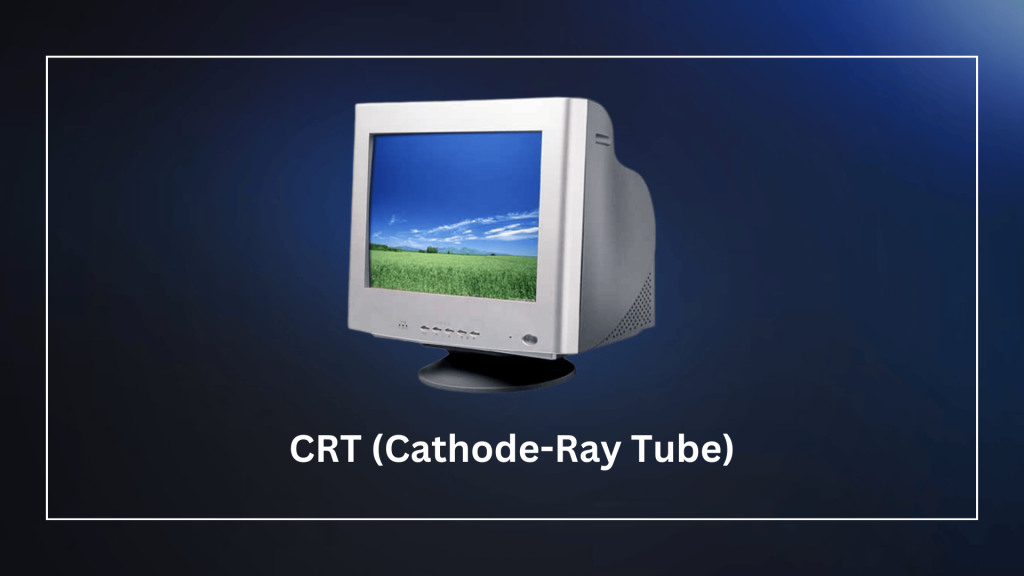
CRT monitors use electron beams to strike a phosphor-coated screen, creating images by emitting light.
Their design features thick glass tubes and heavy builds. They once offered high refresh rates and low input lag, making them popular for gaming.
Today, CRTs are obsolete due to size, weight, power use, and lack of high-resolution support.
2. LCD (Liquid Crystal Display) Monitors
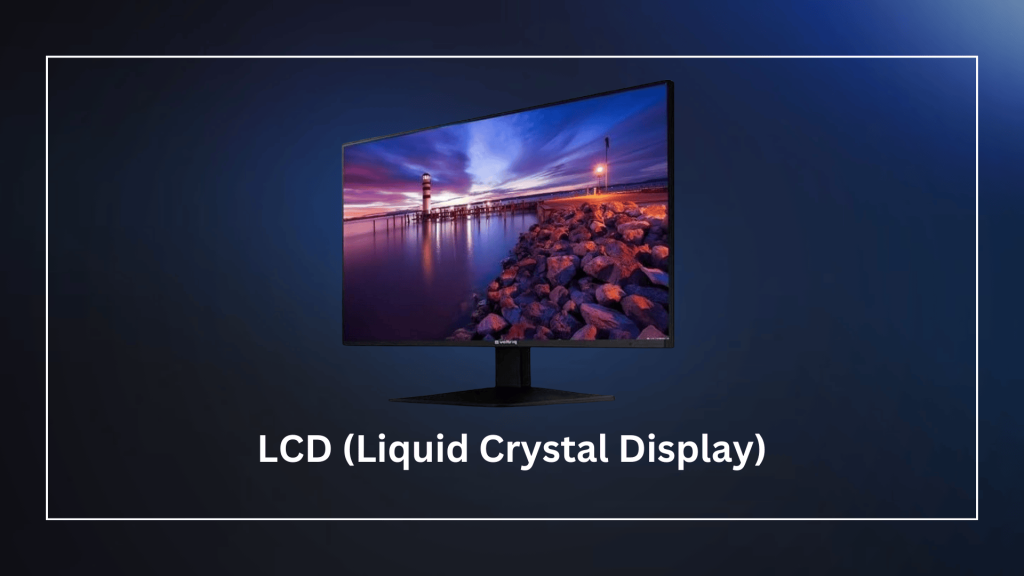
LCD monitors use liquid crystals that twist to control the passage of light from a backlight. Pixels form images by blocking or allowing light.
These displays provide slim profiles, low power consumption, and good color reproduction.
They operate efficiently for office work, web browsing, and general use, though contrast remains limited without advanced backlighting.
3. LED (Light-Emitting Diode) Monitors
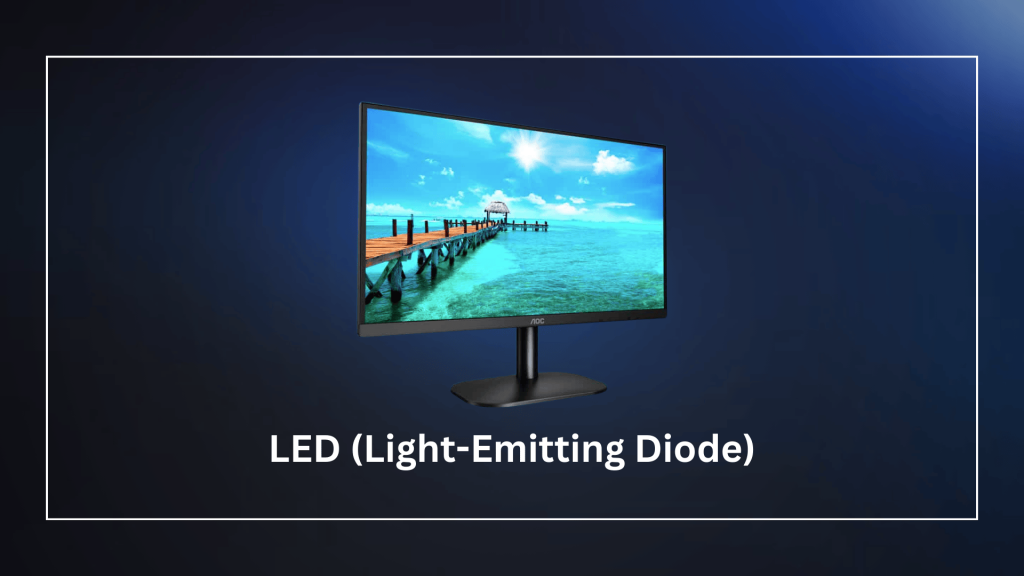
LED monitors use LED backlighting instead of traditional fluorescent lamps. Edge-lit versions place LEDs along edges, while full-array local dimming improves contrast zones.
They deliver better brightness, energy savings, and color accuracy than standard LCDs.
These qualities suit everyday tasks, video watching, and light creative work with thinner designs.
4. OLED and QLED Monitors
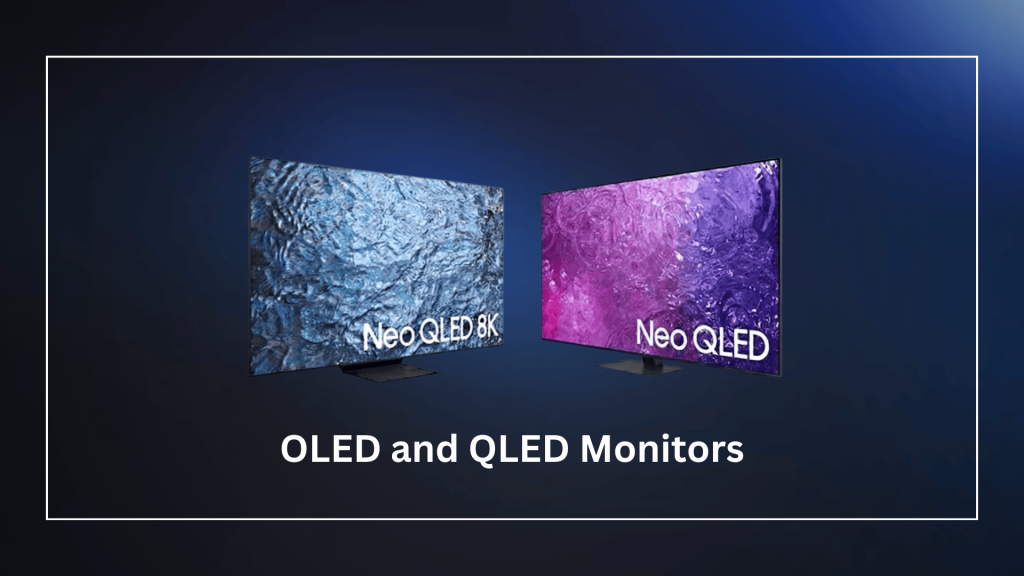
OLED monitors feature self-emissive organic pixels that light up individually, producing true blacks and infinite contrast.
QLED enhances LCD with quantum dots for a wider color gamut and higher brightness.
Both are great for color-critical tasks such as photo editing and video production. OLED offers superior motion handling but risks burn-in over time.
5. Curved and Ultrawide Monitors
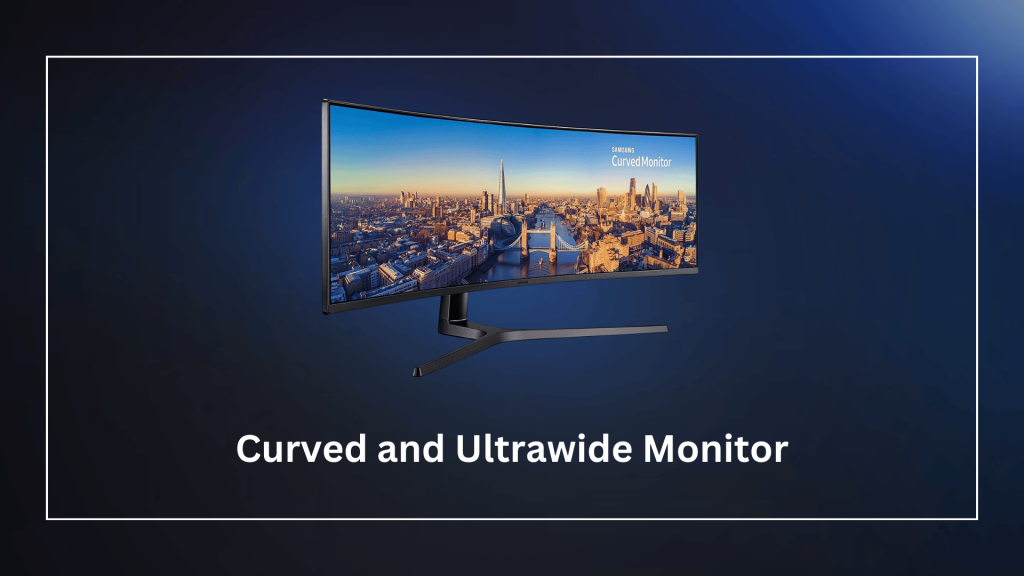
Curved monitors wrap slightly around the viewer to reduce eye strain and improve immersion.
Ultrawide versions expand horizontal space, often with 21:9 or wider aspect ratios. They enhance multitasking, gaming, and video editing by providing a wider field of view.
Setup tips include centering the screen at eye level and adjusting the radius of curvature for comfort.
Explained: Common Monitor Types
This table compares major monitor technologies by design, strengths, and trade-offs, helping you match specs to everyday use, gaming, creative work, and professional needs.
| Type | Key Technology | Pros | Cons |
|---|---|---|---|
| CRT | Electron beam on phosphor | Very low lag, smooth motion | Bulky, heavy, high-power use |
| LCD | Liquid crystals with a backlight | Slim and energy efficient | Lower contrast, backlight bleed |
| LED | LED backlighting | Bright and thin design | Contrast varies by panel |
| OLED | Self-emissive pixels | Deep blacks, rich colors | Burn-in risk, expensive |
| QLED | Quantum dots on LCD | Very bright, wide colors | Not true blacks |
| Ultrawide | Curved wide panels | Immersive and good for multitasking | Needs space, possible distortion |
Tips for Choosing the Right Computer Monitor
Selecting a monitor involves matching key specifications to your daily tasks, workspace, and budget for optimal performance and comfort.
- Define Primary Use: Identify if it’s for office productivity, gaming, graphic design, or general media use to prioritize features like refresh rate or color accuracy.
- Choose Screen Size: Pick 24-27 inches for standard desks; go 32+ inches for immersion, but ensure it fits your space comfortably.
- Select Resolution Wisely: Opt for 1080p on budget setups; choose 1440p or 4K for sharp details in creative work or multitasking.
- Check Panel Type: Use IPS for wide viewing angles and accurate colors; VA for better contrast; TN for fast response in gaming.
- Prioritize Refresh Rate: Aim for 144Hz+ in gaming to reduce blur; 60-75Hz suffices for office and everyday tasks.
- Factor in Ergonomics: Select an adjustable stand with height/tilt/swivel; add an anti-glare and blue-light filter for eye comfort during long sessions.
Conclusion
Computer monitors have come a long way from their humble beginnings as bulky output devices to indispensable tools that enhance every aspect of digital interaction.
By understanding their role as visual translators of a system’s data, turning abstract signals into actionable visuals, you can optimize your setup for your needs and use case.
As technology advances, monitors continue to push boundaries with higher resolutions, smarter features, and energy-efficient designs, making them central to efficient computing.
If you are thinking of upgrading for gaming thrills or work productivity, the right monitor can prove to be an essential tool that shapes your experience.
Which computer monitor are you using right now, and how do you like it?
Share your thoughts in the comments below and join the conversation.
Frequently Asked Questions
How Can I Choose an Energy-Saving Monitor?
CRT monitors used more power and contained harmful materials, while modern LCD and LED models are energy-efficient.
Do Computer Monitors Work With VR or AR?
Monitors support VR and AR by mirroring content. Prioritize high refresh rates, low response time, and modern ports like HDMI 2.1 or DisplayPort 1.4.
Can Computer Monitors Affect Eye Health?
Long use can cause eye strain. Look for flicker-free screens, blue light filters, anti-glare coatings, and adjustable stands to support comfort and eye health.