Your Android version holds the key to unlocking a better, more secure experience with your device. While it may seem like a small detail, knowing the version can make all the difference.
Many people overlook this simple step, only realizing its significance when issues arise.
Understanding your Android version deepens your connection to your device, empowering you to make informed decisions about updates, app installations, and settings.
It helps ensure compatibility with the latest features and security patches.
It’s not just about the number; it’s about understanding what your phone is capable of and staying ahead of any potential issues.
This blog takes you through the simple and easy steps to the answer of: What version of Android do I have? It also shares users’ experiences in finding their Android version.
What is the Latest Version of Android?
The current major Android release is Android 16, officially rolled out in June 2025. Android versions are labeled with numbers now, starting with Android 10.
Google stopped using public dessert names like Pie or Oreo after that point, though internal codenames still exist for development builds.
Android 16 succeeds Android 15, Android 14, and Android 13, each bringing improvements in security, usability, and performance over the years.
When checking your device’s system info, the version number tells the official Android release.
The build number is a more specific identifier that shows the exact software package and minor updates installed on the phone.
What Version of Android Do I Have?
These steps will help users identify the Android version on their phone, which is useful for troubleshooting, updating apps, and understanding the features the device can support.
Step 1: Open the Settings Menu
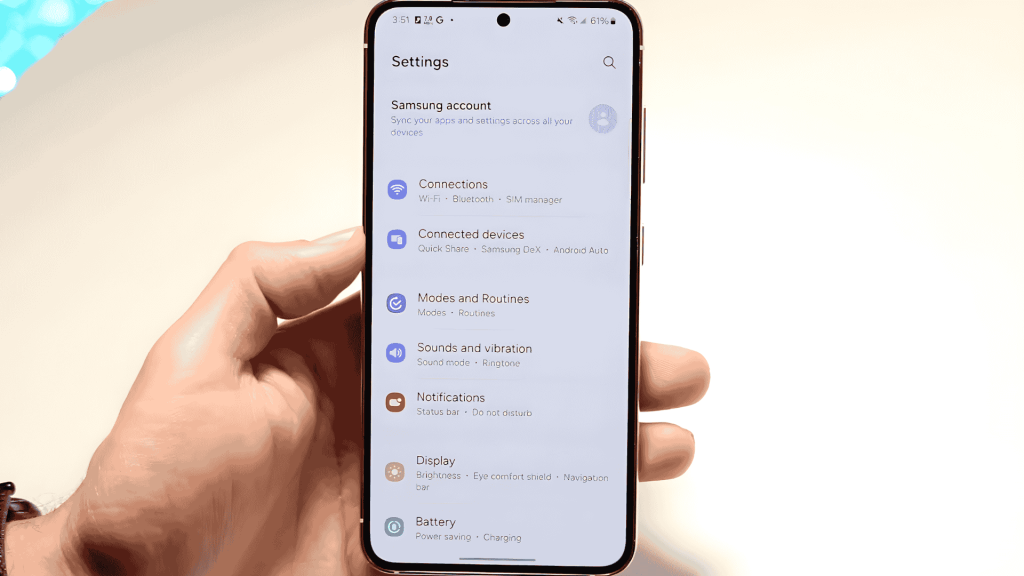
To get started, the first step is to access the Settings app and from the home screen, swipe up to open the apps menu.
Locate the Settings icon, which typically looks like a gear, and tap the icon to open the app.
The Settings menu is where all the device’s customization options are located. This menu provides quick access to settings such as Wi-Fi, sound, display, and more.
Once in the Settings menu, scroll through the options carefully to proceed to the next step.
Step 2: Scroll Down to Find About Phone
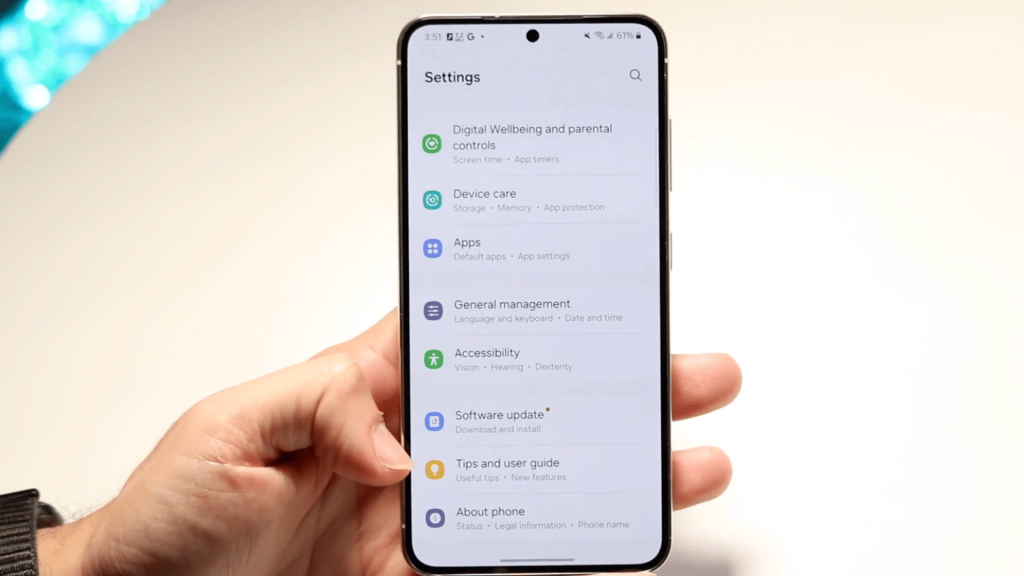
After opening the Settings app, find the About Phone section. Scroll down the list of options in the Settings menu. It’s usually located at the bottom of the list.
About Phone stores key information about the device. This includes the Android version, model number, and other important details.
It’s an essential spot for anyone looking to learn more about their device’s specifications.
Once About Phone has been located, tap on it to open the page with more detailed information about your device.
Step 3: Tap About Phone
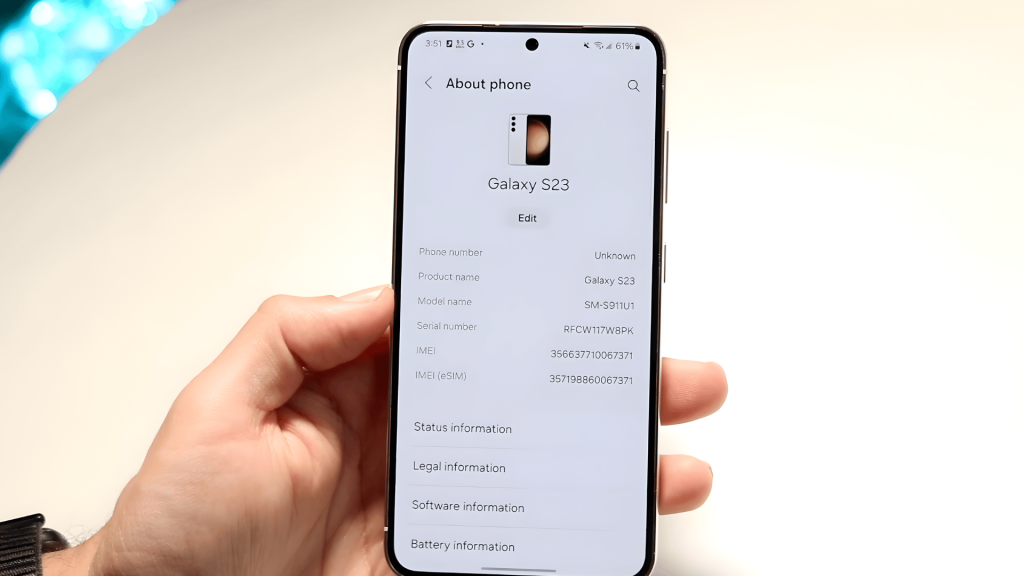
Once About Phone has been located, tap on it to open the page with more detailed information about the device.
This page displays various information about the phone, including the Android version.
The version number might appear right at the top or under a specific section. If the Android version is not immediately visible, don’t worry.
There’s another section within About Phone where it will likely be listed. Tap through and find the version of Android the phone is currently running.
Step 4: Locate the Android Version/Software Information
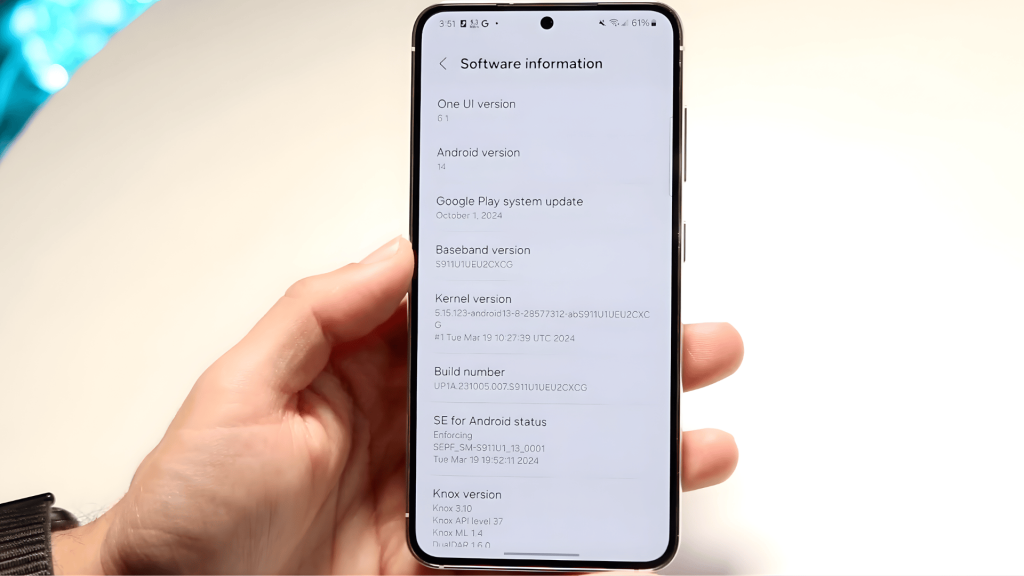
In the About Phone section, look for the Android Version information. It’s often listed clearly under the software information.
If it isn’t directly visible, there’s typically a sub-option called Software Information, tap it to reveal more details. This section will include the exact Android version number.
This step is crucial for understanding which features are supported and whether the phone is up to date with the latest Android release.
Checking the Android version helps ensure compatibility with apps and updates.
Step 5: Check & Install Any Available Updates
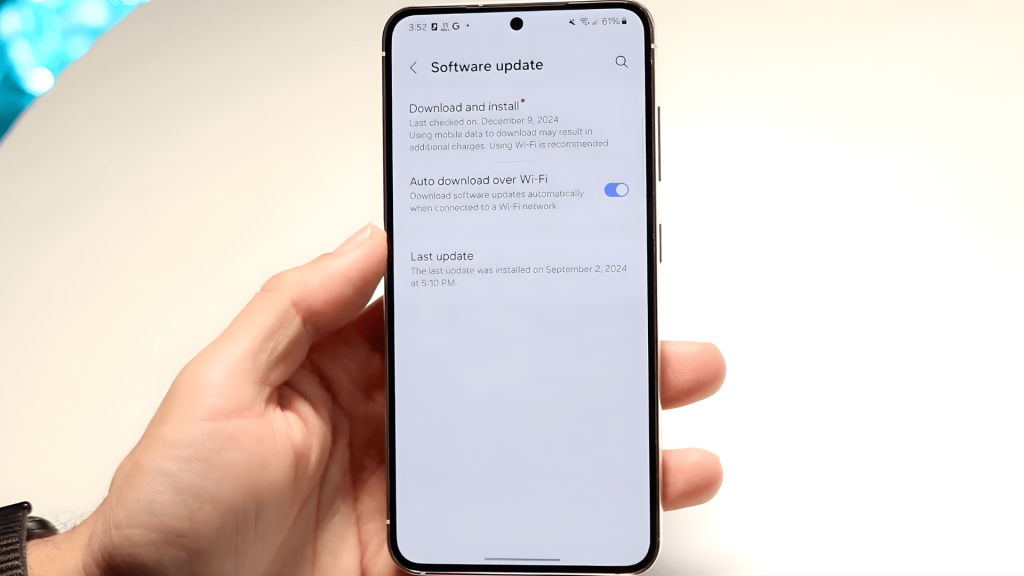
Another way to confirm the Android version is by checking for Software Updates. Return to the main Settings menu, and look for the Software Update section.
Here, the phone might automatically indicate whether it’s up to date. If an update is available, it will also display the Android version included in the update.
This section also allows users to download and install any new updates. Tap Download and Install to proceed if an update is available.
This tutorial is based on a helpful video by LoFi Alpaca. You can check out the original video on their YouTube channel here or watch it below.
Why Can’t I Find My Android Version?
Sometimes, it can be tricky to locate the Android version on your device. If you’re still unable to find it, try restarting your device or searching through the Settings app.
- Hidden in Submenus: On some devices, the About Phone section is tucked away under different menus like System or General.
- Software Glitches: In some cases, system errors or bugs can prevent the version number from displaying correctly.
- Older Android Versions: On older versions of Android, the menu structure may look different or less intuitive, making the version harder to locate.
- Device-Specific Settings: Some brands, such as Huawei, display Android version info in a unique way under custom settings.
- Custom Skins and UIs: Manufacturers like Samsung, OnePlus, and Xiaomi use customized interfaces (One UI, OxygenOS, MIUI) that can alter how settings are organized.
Real User Experience
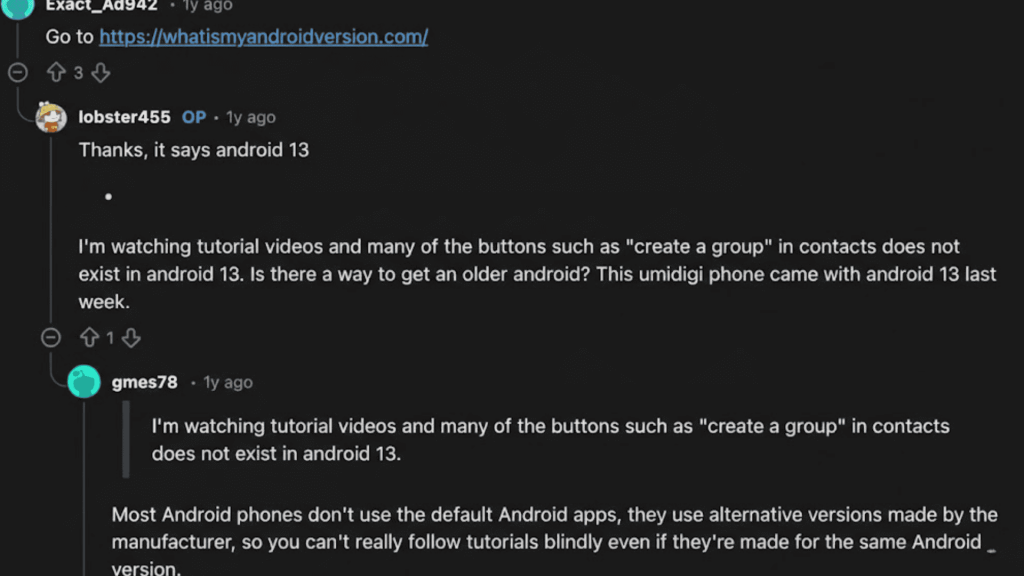
One Reddit user shared their detailed experience with trying to verify the Android version on their new Umidigi G6 smartphone.
After being told it was running Android 13, they noticed discrepancies between the settings and features shown in YouTube tutorials.
The user explored their device’s About Phone section but couldn’t find the expected options.
The solution was to use the search bar in System and type Android version, which revealed that the phone was indeed running Android 13.
This highlights how different manufacturers might modify the interface, causing confusion for users trying to follow generic tutorials.
It’s always a good idea to check your phone’s settings thoroughly or use third-party apps to get more details.
Identify Your Android Version Name
The version name of the phone’s operating system is usually accompanied by a number, but it also carries a unique name that are Google internal codes that represents a specific release.
| Android Version | Name | Year |
|---|---|---|
| Android 16 | Baklava | 2025 |
| Android 15 | Vanilla Ice cream | 2024 |
| Android 14 | Upside Down Cake | 2023 |
| Android 13 | Tiramisu | 2022 |
| Android 12 | Snow Cone | 2021 |
| Android 11 | Red Velvet Cake | 2020 |
| Android 10 | No Dessert | 2019 |
| Android 9.0 | Pie | 2018 |
| Android 8.0 | Oreo | 2017 |
| Android 7.0 | Nougat | 2016 |
Conclusion
Knowing your Android version is crucial for ensuring compatibility with apps, receiving timely updates, and maintaining your device’s security.
Without this knowledge, you might miss out on important features or security patches.
By following the steps outlined, finding what version of Android do I have becomes quick and straightforward, helping you stay informed about software updates.
This will help you make better decisions regarding app compatibility and troubleshoot any issues you may encounter.
Keeping your Android up to date also ensures you’re getting the latest features and bug fixes.
Checking your version is a simple step that can greatly impact your device’s functionality and performance.
Have any tips or experience about finding your Android version?
Leave a comment below, and let us know any challenges you’ve faced.
Frequently Asked Questions
Is It Possible to Downgrade the Android Version?
Downgrading your Android version is not officially supported, but can be done through manual flashing of older firmware. This process is complex and may void the warranty.
What Is the Oldest Android Version Still Supported?
The oldest Android version still supported is typically Android 10. Google provides security updates for up to 3 years for each major version, but older versions lose support gradually.
Is It Safe to Use a Phone That No Longer Gets Updates?
Using a phone without updates can expose it to security risks. Without updates, the phone may lack important patches and bug fixes, making it more vulnerable to malware and data breaches.