A Chromecast remote that stops responding can interrupt your favorite streaming and may irritate you.
When your remote fails to control playback or volume, it can be from simple issues like dead batteries to major issues that may require replacements.
This blog walks you through proven troubleshooting methods to restore full functionality to your Google streaming device.
You’ll find quick fixes organized, starting with quick battery checks and progressing to advanced pairing techniques.
Each solution targets specific causes, helping you resolve the “chromecast remote not working” problem without unnecessary trial and error.
The guide also covers smart TV compatibility concerns and alternative control options using mobile apps.
Why is Your Chromecast Remote Not Working?
The Chromecast remote stops working due to power, connectivity, or hardware failures.
Battery issues rank as the most common culprit, including depleted charge, incorrect battery types, or reversed polarity during installation.
Bluetooth connection problems occur when the remote loses its pairing with the Chromecast or encounters signal interference from nearby wireless devices.
Software conflicts arise when your device runs outdated firmware that doesn’t sync properly with remote commands.
Physical damage to buttons or internal circuits can prevent the remote from registering inputs correctly, particularly after drops or exposure to liquids.
Understanding these root causes helps you apply targeted solutions rather than guessing which fix might work for your specific situation.
How to Fix a Chromecast Remote Not Working?
These solutions address the most common Chromecast remote issues and should be tried in order. Each method targets specific problems, from simple power issues to complex connectivity failures.
1. Replace the Remote Batteries
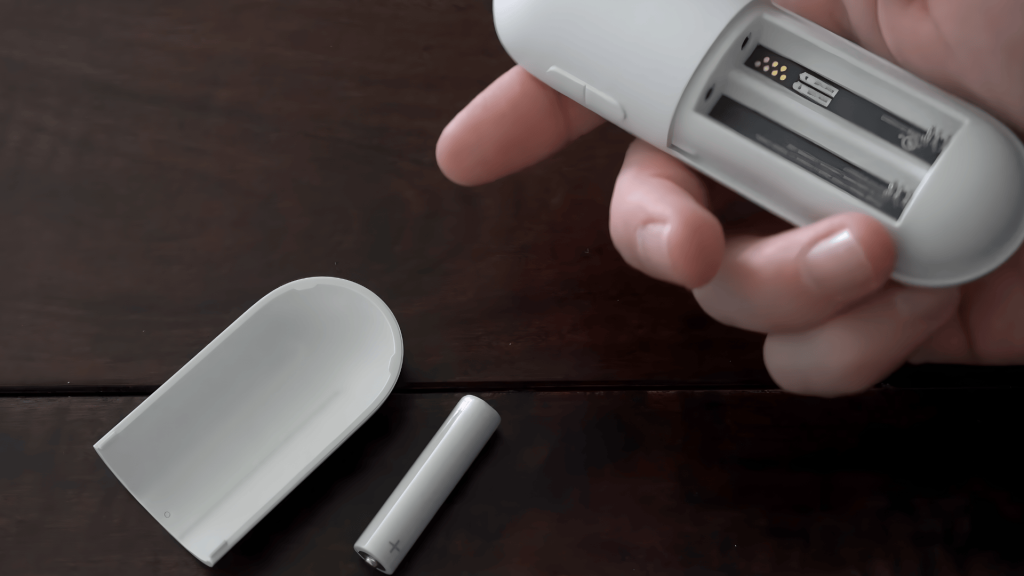
Remove the battery cover from the back of your Chromecast remote and take out both batteries completely. This full battery removal prevents partial electrical discharge.
Follow these steps for a proper reset:
- Hold down the power button for 15 to 20 seconds to discharge residual current.
- Press every button from top to bottom multiple times to clear stuck inputs.
- Check that no buttons remain accidentally pressed in.
Reinsert fresh AAA batteries with correct positive and negative alignment. Test the remote by pressing the power button to verify the LED indicator blinks.
2. Restart the Chromecast Device
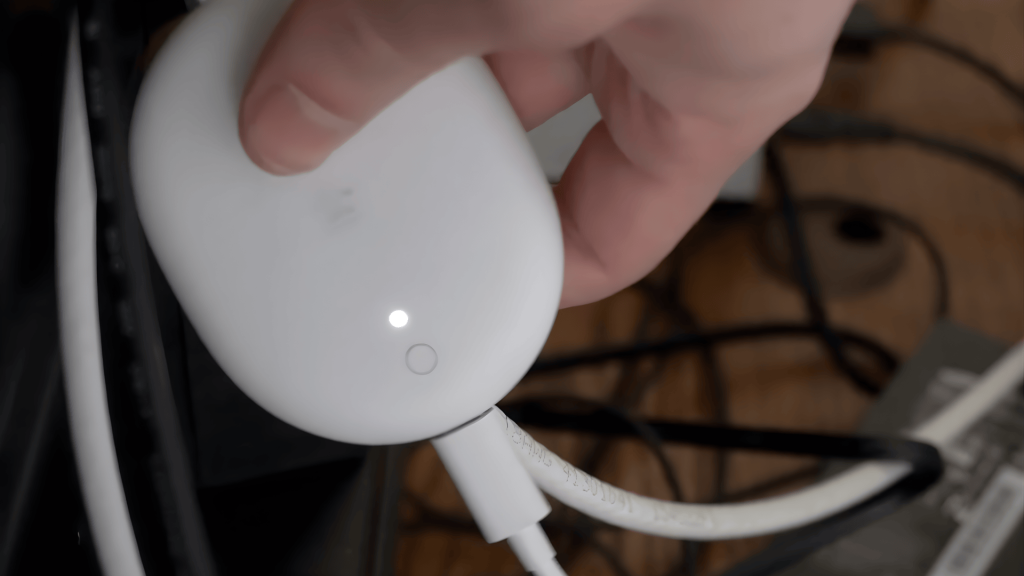
Power cycling your device resolves temporary system errors that prevent remote communication. Press and hold the button on your Chromecast device for approximately two seconds.
Watch for these indicators:
- The LED light turns orange briefly when properly activated.
- The TV screen displays the “Searching for accessories” message.
- Chromecast enters setup mode and scans for a remote connection.
This restart method is faster than unplugging the device and ensures active scanning. The system refresh typically completes within 30 seconds, preparing your Chromecast to reconnect with the remote.
3. Re-Pair the Chromecast Remote
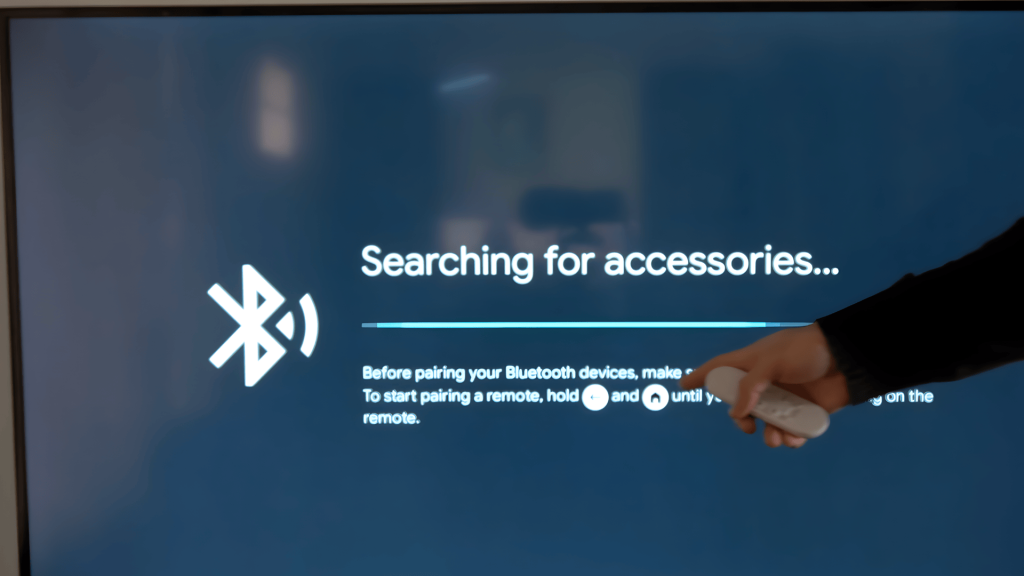
Manual pairing reconnects your remote when automatic detection fails. Press and hold both the Back button and Home button on your remote simultaneously.
Complete the pairing process:
- Hold both buttons for at least three seconds until the LED light pulses continuously.
- TV displays “Before pairing your Bluetooth devices, make sure they’re in pairing mode.”
- Press the Home button to test if the connection succeeded.
The pulsing light indicates pairing mode is active. If successful, the Chromecast home screen will appear, confirming a fresh Bluetooth connection between your remote and streaming device.
Here is a helpful video tutorial by YourSixTech demonstrating these troubleshooting steps.
How to Pair a New Chromecast Remote?
Pairing a brand-new remote requires activating Bluetooth pairing mode on both devices. Unbox your new Chromecast remote and remove the battery tab or insert fresh batteries.
Follow these pairing steps:
- Press and hold the Back and Home buttons together for three seconds.
- Wait for the remote LED to pulse, indicating pairing mode is active.
- Your TV will display available devices to pair.
- Select your remote from the list to complete the connection.
Once paired successfully, test all buttons, including volume, power, and navigation controls. The new remote should respond immediately without delay or additional setup required.
Why is My Chromecast Remote Not Working With Samsung TV?
Compatibility and TV settings can affect how the Chromecast remote behaves on Samsung TVs.
Samsung TVs use Anynet+ (HDMI-CEC) technology that can conflict with Chromecast remote signals.
Input source confusion occurs when switching between native TV apps and Chromecast, causing the remote to become unresponsive.
Outdated Samsung Smart TV firmware may block proper HDMI communication, preventing the remote from sending commands.
Samsung remote infrared signals can also interfere with Chromecast Bluetooth pairing, creating control conflicts between the two systems.
To fix these problems:
- Press the Home button on your Samsung remote.
- Navigate to Settings > General > External Device Manager.
- Select Anynet+ (HDMI-CEC) and toggle this setting off.
- Test your Chromecast remote functionality.
Chromecast Remote Not Working With Other Smart TVs
Different TV brands have unique settings that interfere with Chromecast remote functionality.
LG TVs use ThinQ AI that overrides external controls, Sony Bravia Sync causes input delays, Vizio SmartCast disrupts pairing, and TCL Roku integration creates signal conflicts.
These proprietary systems compete with Chromecast for device control, leading to unresponsive buttons or delayed commands.
The most effective fix is disabling HDMI-CEC in your TV’s system settings.
This feature has different names across brands but serves the same control purpose. Update your TV firmware afterward and switch Chromecast to a different HDMI port if needed.
Some HDMI ports provide better signal strength than others. Most conflicts resolve once HDMI-CEC is disabled.
Chromecast Remote Compatibility Across Generations
Understanding which Chromecast model you own is critical for troubleshooting remote issues effectively.
The original Chromecast Gen 1 (2013), Gen 2 (2015), and Gen 3 (2018) did not include physical remotes and relied solely on smartphone control through the Google Home app for all streaming functions.
The Chromecast with Google TV (2020) introduced the first voice remote with Bluetooth pairing for 1080p streaming, marking a major shift in user control.
The Chromecast with Google TV 4K (2022) continued this design with improved button responsiveness and longer battery life.
Remote compatibility is generation-specific, so remotes designed for Google TV models won’t work with Gen 1-3 devices under any circumstances.
Always verify your exact Chromecast model through the device label or Google Home app settings before attempting any troubleshooting steps to avoid wasted effort.
Troubleshooting Tips for Chromecast Remote Issues
If standard fixes fail, advanced actions may be required to restore functionality or determine if hardware replacement is necessary. Try these troubleshooting methods before replacing your remote:
- Factory Reset: Hold the Chromecast device button for 25 seconds until the LED blinks.
- Model Compatibility: Verify your remote matches your device generation.
- Physical Inspection: Check for damage on buttons and battery contacts.
- Firmware Update: Update Chromecast through the Google Home app.
- Remote Testing: Test with a different remote to isolate the issue.
- Warranty Support: Contact Google support for warranty coverage.
- Official Replacement: Purchase a replacement remote from the Google Store.
- Router Interference: Change your Wi-Fi router channel to reduce 2.4 GHz interference.
- Battery Contact Cleaning: Clean battery terminals with isopropyl alcohol and a cotton swab.
- TV HDMI Port Switch: Try connecting Chromecast to a different HDMI port on your TV.
Conclusion
Most Chromecast remote not working problems can be resolved with structured troubleshooting.
Start with simple battery replacement and power cycling, then move to Bluetooth re-pairing and interference reduction if needed.
Samsung TV users should check HDMI-CEC settings to prevent control conflicts, while the Google TV app offers reliable temporary control during troubleshooting.
Regular system updates keep your device and remote matched, preventing future connection issues.
When hardware failure occurs, official replacement remotes ensure proper compatibility with your specific remote model.
Have you tried replacing your batteries and re-pairing your remote?
Share your experience in the comments below and let us know which solution worked for you!
Frequently Asked Questions
How to Manually Reset Chromecast?
Unplug Chromecast, plug it back in, then hold the physical button until the LED flashes. Release when the screen confirms the reset process has started.
Can I Reset Chromecast Without the Button?
Yes. Open the Google Home app, select the Chromecast device, go to settings, choose factory reset, and confirm. This works when the device is still accessible.
Does Resetting Fix Chromecast Issues?
Resetting often fixes connectivity, remote, and software issues by clearing glitches, restoring default settings, and forcing a fresh setup, though hardware problems may still remain.