Installing Kodi on a Fire TV Stick can turn a basic streaming device into a powerful media hub, and the good news is that it’s easier than it sounds.
If you have searched for a clear and reliable way to install Kodi on Fire TV Stick, this blog post is made for you.
Kodi is a free media player that lets you stream videos, music, and live TV from one place. Since Kodi is not available in the Amazon Appstore, many users feel confused about where to start.
This blog post breaks everything down into easy steps that anyone can follow.
You will learn how to prepare your Fire TV Stick, install the latest Kodi version, and avoid common mistakes during setup.
By the end, you will have Kodi running smoothly on your Fire TV Stick without stress or guesswork.
What is Kodi and Why Use It on a Fire TV Stick?
Kodi is a free media player that lets you stream videos, music, podcasts, and live TV.
While it doesn’t come with its own content, it supports add-ons that connect you to media from various sources.
Many users install Kodi on Fire TV Stick because it offers more control over how they organize and stream their content.
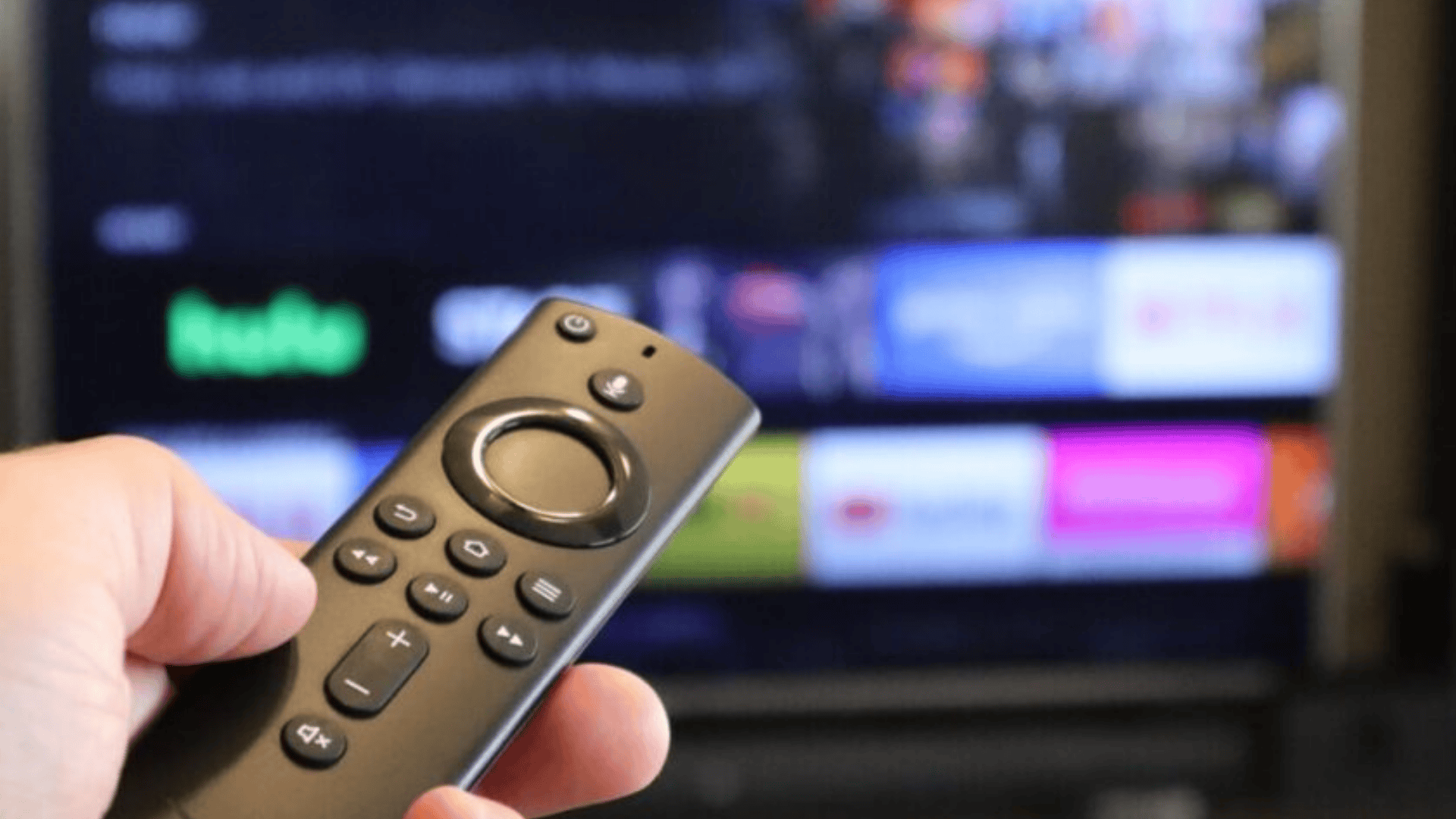
The Fire TV Stick is small, affordable, and easy to use, making it a great match for Kodi’s interface and remote.
Kodi is also safe to use, as long as you stick to official add-ons. Together, they create a flexible and user-friendly setup for home entertainment.
Kodi works well with local files, network storage, and subtitles, meaning you can keep all your media in one place without needing multiple apps.
Whether you’re streaming or accessing your own collection, Kodi and Fire TV Stick make it simple.
How to Prepare Your Fire TV Stick for Kodi Installation?
Before installing Kodi on a Fire TV Stick, make sure your device is set up and connected to your TV.
You’ll need a stable internet connection to download Kodi and be signed into your Amazon account to install apps from the Appstore.
Also, check the available storage on your Fire TV Stick; low space can cause installation issues.
Since Kodi isn’t available on the Amazon Appstore, you must enable third-party app installations.
To do this, go to Settings on your Fire TV Stick, select My Fire TV, then Developer Options. Turn on the Apps from Unknown Sources option.
This setting allows the Fire TV Stick to install apps from other sources, like Kodi, and prevents installation errors.
Once these steps are complete, your Fire TV Stick is ready to install Kodi, and the rest of the process will run smoothly without any additional setup.
How to Install Kodi on Fire TV Stick?
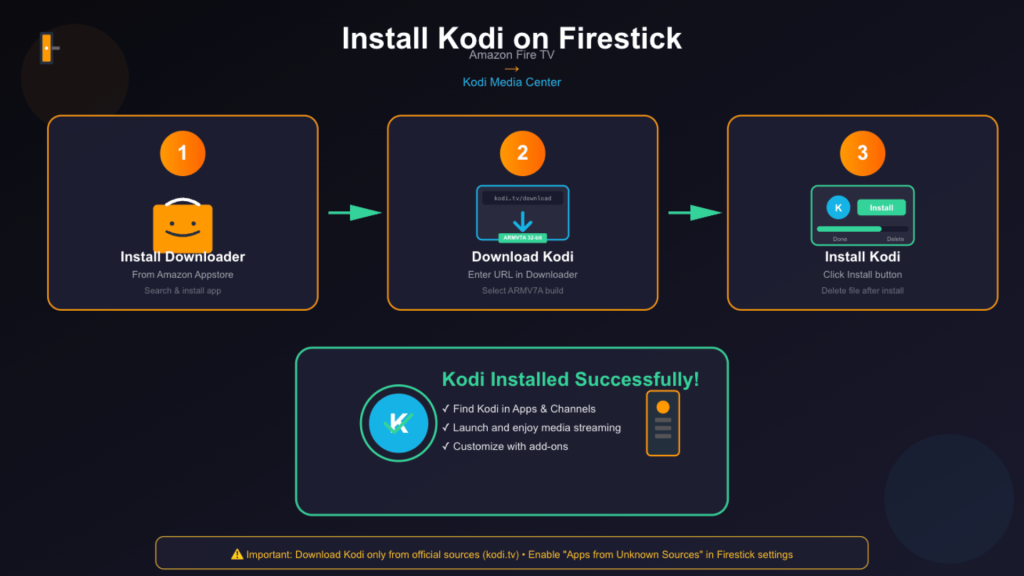
This section walks you through installing Kodi on Firestick using the Downloader app, from installing required tools to completing setup safely and correctly step by.
Step 1: Install the Downloader App
Begin by opening the Amazon Appstore on your Fire TV Stick home screen. Use the search bar and type “Downloader.” Select the app from the results and install it.
Downloader is a free tool that allows direct file downloads from the internet. Once installed, open the app and allow the requested permissions.
These permissions are needed so the app can save and install files properly. After this step, your Fire TV Stick is ready to download the Kodi file.
Step 2: Download the Kodi File
Open the Downloader app and click on the URL input field on the home screen. Enter the official Kodi download link and press Go.
When the Kodi website loads, scroll down to find the Android versions. Select the ARMV7A (32-bit) build, as it works best with Fire TV devices.
The file will start downloading automatically. Wait until the download finishes completely before moving to the installation step.
Step 3: Install Kodi on Fire TV Stick
Once the download is complete, Downloader will open the installation screen automatically. Click the Install button and allow the process to finish.
This may take a few moments. After installation, select Done instead of Open. You will then be prompted to delete the installation file.
Choose Delete to free up storage space. Kodi is now installed and can be found in the Apps & Channels section of your Fire TV Stick menu.
How to Install and Update the Latest Kodi Versions?
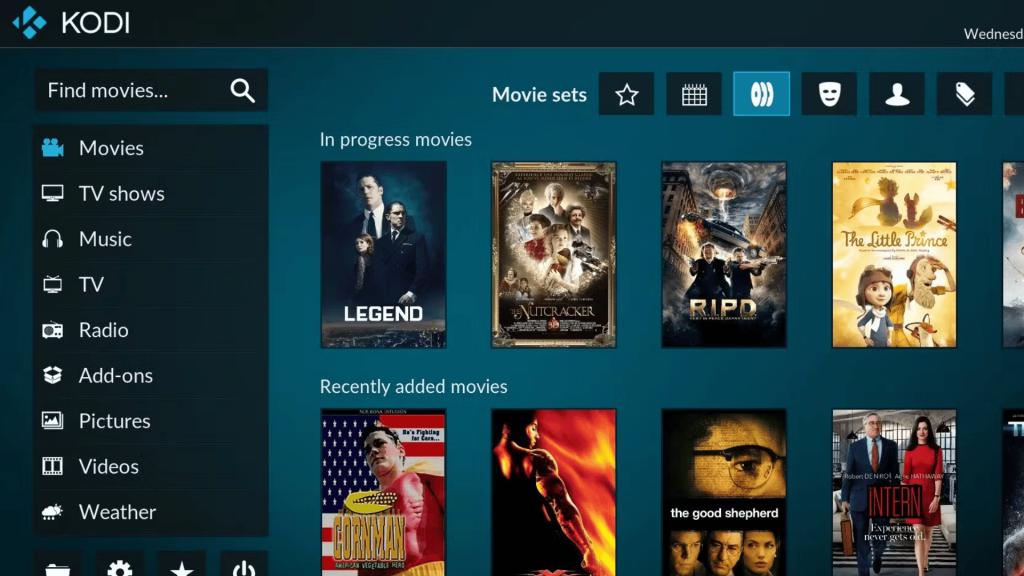
Follow these 5 steps to install or update to the latest Kodi version, like Kodi 21.3 Omega, on your Fire TV Stick for smooth streaming:
- Confirm Fire TV Stick Compatibility: Go to Settings > My Fire TV > About > Check for Updates. Install updates and ensure enough free storage.
- Download Kodi: Open Downloader, enter the official Kodi link, and select the ARMV7A (32-bit) version. Wait for the download to finish.
- Install Kodi: Click Install and wait for completion. Select Done and delete the file to save space.
- Verify the Version: Go to Settings > System Information in Kodi to confirm the version (e.g., Kodi 21.3 Omega).
- Enjoy Kodi: Once confirmed, you’re ready to start streaming with the latest Kodi features.
This process ensures you install the latest Kodi version correctly and smoothly on your Fire TV Stick.
Alternative Ways to Install Kodi
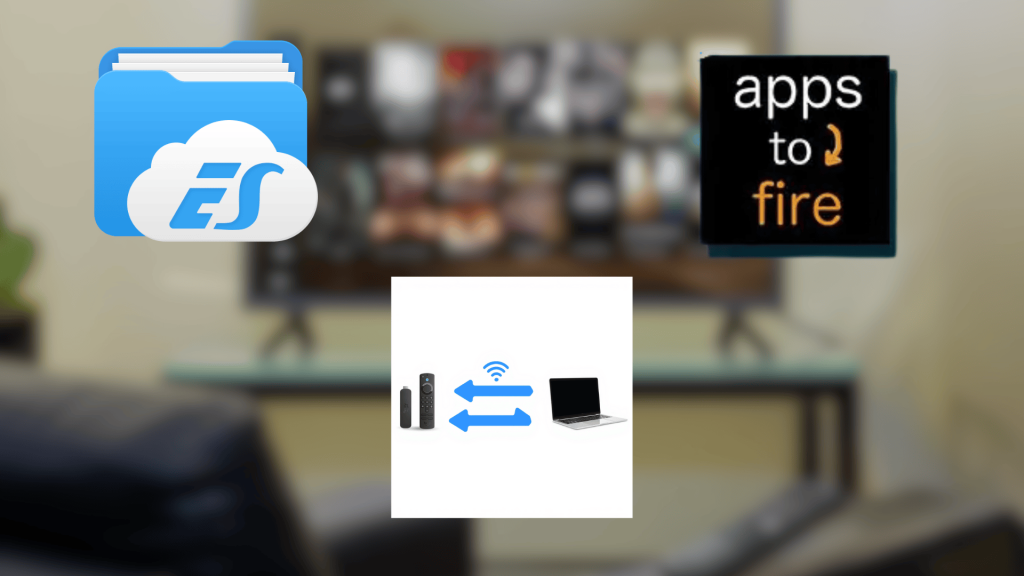
These alternative methods explain other ways to install Kodi on Fire TV Stick for users who prefer different tools or already use phones or computers at home.
- ES File Explorer: Lets you download and install the Kodi APK directly on Firestick using its built-in download manager and file access tools.
- Apps2Fire: Allows you to send the Kodi app from an Android phone to a Fire TV Stick over the same Wi-Fi network.
- Downloader Short Code: Uses a short URL code in the Downloader app to fetch the Kodi file faster without typing a long link.
- PC to Firestick Transfer: Installs Kodi by sending the APK file from a computer to Firestick using local network tools.
- ADB Command Method: Installs Kodi through command-line tools, mainly used by advanced users who prefer manual control.
Common Kodi Installation Problems and Fixes
This section highlights common Kodi installation and performance problems on Fire TV Stick and explains simple fixes to help users resolve issues quickly and continue using the app smoothly.
- Kodi not installing: This usually happens when the wrong APK file is selected. Make sure you choose the Android ARMV7A (32-bit) version made for Fire TV Stick.
- App not opening: If Kodi closes right after opening, restart your Fire TV Stick and try again. This often fixes temporary system issues.
- Parse error message: A parse error means the Kodi version is not compatible with your Fire OS. Download the correct build from the official site.
- Low storage warning: Fire TV Stick needs free space to install apps. Delete unused apps or files before installing Kodi.
- Slow performance: Clear Kodi cache and limit add-ons to keep the app running smoothly.
By addressing these common Kodi installation and performance issues, you can enjoy a seamless streaming experience on your Fire TV Stick without interruptions.
Conclusion
Installing Kodi on Fire TV Stick gives you a flexible way to manage entertainment without relying on multiple apps.
With the right setup, Kodi can work smoothly and fit different viewing preferences, from local media to supported add-ons.
Using the correct version and keeping the app updated helps reduce errors and improve overall performance.
Small steps, like clearing storage and choosing trusted sources, can make a big difference in how well Kodi runs over time.
As you continue using Kodi, you can adjust settings, organize content, and fine-tune features to suit your needs.
If something does not work as expected, simple fixes usually solve the issue quickly.
If this blog post helped you or if you faced any trouble during the process, feel free to leave a comment below. Your input helps others and keeps this guide useful and up to date.