Getting locked out of your phone can be frustrating, especially when you’ve forgotten your password or pattern.
Knowing how to reset a phone that is locked is essential for getting back into your device.
A reset becomes necessary when you can’t remember your password, enter the wrong code too many times, or face system errors that block normal access.
In this blog, I’ll show you simple methods for both Android and iPhone devices.
Not only this, but I’ll also cover easy step-by-step instructions for different reset options, important things to know beforehand, and what happens during the reset.
Before you start any reset, knowing what to expect and how to prepare will help make things go smoothly and keep your important information safe from being lost forever.
Why Does Your Phone Get Locked?
Phones get locked due to security features designed to protect your personal information from unauthorized access.
The most common reason is forgetting your PIN, password, or pattern after not using it for a while.
This happens more often than you might think, especially if you rely on fingerprint or face recognition for daily access.
Entering incorrect credentials multiple times triggers automatic lockouts as a security measure to prevent hackers from guessing your code.
Purchasing a second-hand or previously owned device that’s still linked to the former owner’s account can also result in a locked phone that you cannot access.
Additionally, software glitches or an unresponsive touchscreen can block normal access, even when the correct credentials are known.
Sometimes after a system update, phones may also freeze or become unresponsive, requiring a reset to restore normal function.
Things to Know Before Resetting a Locked Phone
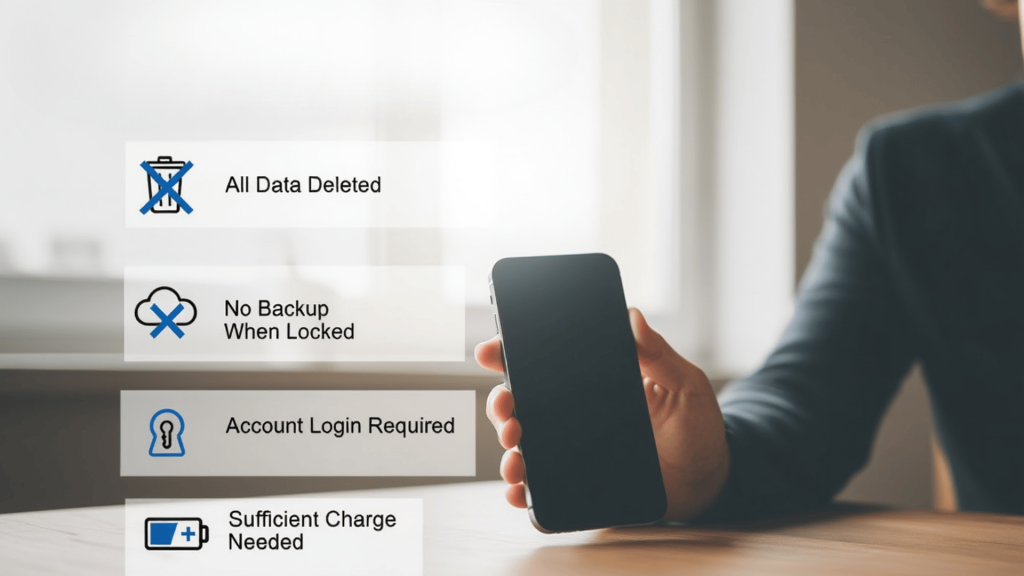
Before you proceed with resetting your locked phone, there are several important factors you need to understand. Knowing how to reset a phone that is locked starts with these key points to prevent data loss.
- Reset removes all personal data: Photos, contacts, apps, and files will be permanently deleted from your device.
- Backup access is limited when the phone is locked: You won’t be able to create new backups after being locked out.
- Account verification is required after reset: You’ll need your Google or Apple account credentials to set up the device again.
- Battery level should be sufficient: Ensure at least 50% charge to prevent interruption during the reset process.
Taking these precautions seriously will save you from losing important data and help ensure a smooth reset process. Make sure you’re prepared before moving forward with any reset method.
How to Reset a Locked Android Phone?

Android phones can be reset using recovery mode or Google services. Below you will see proven methods that work for different situations and Android brands.
Method 1: Hard Reset Using Android Recovery Mode
This method works on all Android devices by accessing the built-in recovery mode menu. Recovery mode is a special startup environment that allows you to perform system-level operations even when your phone is locked.
- Press and hold the power button to force shut down your phone completely.
- Press and hold the volume up and power buttons together until the brand logo appears.
- Use volume buttons to select “Wipe data/Factory reset” and confirm with the power button.
- Select “Reboot system now” to restart your device.
The reset process may take a few minutes to complete, so be patient while your phone erases all data and restores factory settings.
Once finished, your phone will restart, and you can set it up as a new device.
Method 2: Hard Reset Using Hardware Buttons by Brand
Different manufacturers require specific button combinations to enter recovery mode. Knowing your phone’s brand helps you use the correct button combination for a successful reset.
- Samsung, Xiaomi: Press volume up and power buttons together until the logo appears.
- Google Pixel, OnePlus: Press volume down and power buttons together until the logo appears.
- Follow the on-screen menu to select the factory reset option.
Once in recovery mode, the reset process is the same across all brands regardless of the button combination used. Make sure to hold the buttons firmly until you see the brand logo on your screen.
Method 3: Factory Reset Using Google Find My Device
This remote reset method requires access to another device with an internet connection. You can erase your locked phone from anywhere without physically touching it.
- Open a browser and visit the Google Find My Device website.
- Sign in with your Google account linked to the locked phone.
- Select your locked device from the list and click “Erase.“
- Re-enter your Google password to verify and confirm.
The reset command will be sent remotely, and your phone will erase itself automatically when connected to the internet. This method is convenient when you don’t have physical access to your locked device
Watch this video by Tenorshare to see these Android reset methods demonstrated step-by-step.
How to Reset a Locked iPhone?
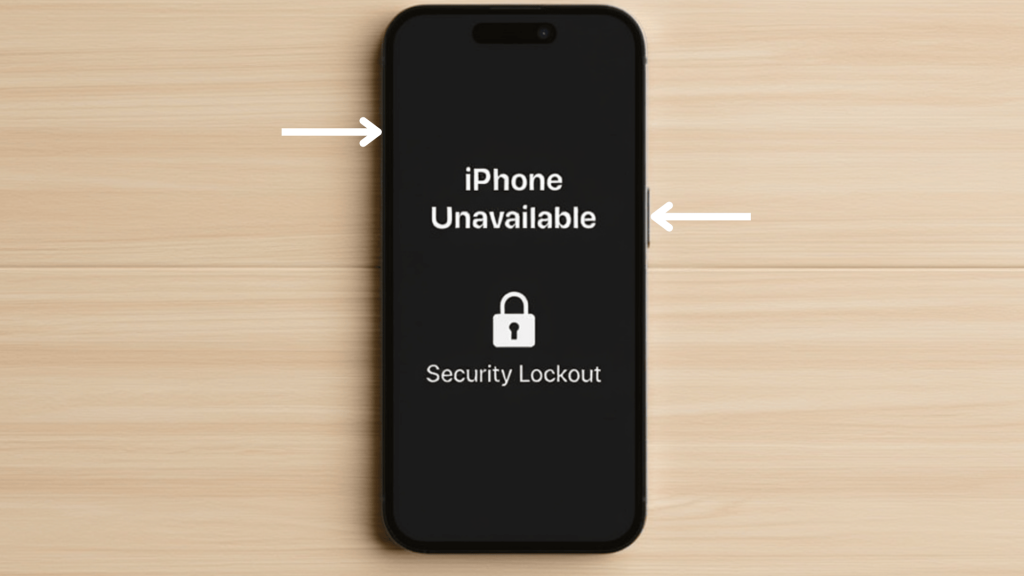
iPhones require a computer-based reset when locked. Below are some effective methods to reset your locked iPhone and regain access to your device.
Method 1: Reset a Locked iPhone Using Recovery Mode
This method requires a computer and a charging cable to put your iPhone into recovery mode. You’ll need to turn off your iPhone first before connecting it to the computer.
- Turn off your iPhone completely using the volume up and side buttons, then slide to power off.
- Connect your iPhone to the computer while holding the power button (side or top button).
- Hold through the Apple logo until the recovery mode screen appears with the computer icon.
- Open Finder (Mac) or iTunes (Windows) and select the “Restore iPhone” option.
The restore process will erase all data and install the latest iOS version. Once complete, you can set up your iPhone as new or restore from your latest iCloud or iTunes backup.
Method 2: Reset iPhone Using iCloud
This remote reset method works when you have Find My iPhone enabled and internet access on another device. You can erase your locked iPhone from anywhere without needing a computer.
- Open a browser and sign in to iCloud.com with your Apple ID.
- Click on the “Find My” feature from the iCloud services menu.
- Select your locked iPhone from the list of devices.
- Click “Erase iPhone” and confirm the permanent action.
The erase command will be sent remotely to your device. Your iPhone will reset itself automatically when it connects to Wi-Fi or cellular data, removing all content and settings completely.
For a visual walkthrough of these iPhone reset techniques, check out this helpful tutorial by Howfinity.
What to Do After Resetting a Locked Phone?
After completing the reset process, you need to follow these essential setup steps to regain full access to your device and restore your data.
- Sign in with the original Google or Apple account: Use the same credentials that were linked to the device before resetting.
- Complete verification process: Follow the security steps to confirm your identity and ownership.
- Restore apps and data from backup: If you had cloud backup enabled previously, you can recover your information during setup.
- Update system software: Check for and install any available operating system updates for better security and performance.
Completing these setup steps helps you regain full access, restore important data, and ensure your phone is ready for safe daily use.
Important Tips for Phone Reset and Security

Following these tips will help you avoid future lockouts and protect your data from permanent loss. Taking a few minutes to implement these security measures can save you from hours of frustration later.
- Enable automatic cloud backups: Turn on iCloud or Google backup to save your data regularly.
- Use biometric authentication: Set up fingerprint or face recognition to avoid forgetting passwords.
- Write down passwords securely: Keep credentials in a password manager or secure notebook.
- Set up account recovery options: Add recovery email and phone number to your account.
- Keep your battery charged: Maintain at least 50% battery before attempting any reset.
- Test your backup regularly: Check your cloud backup every few months to ensure it works.
Following these simple habits reduces the risk of future lockouts and keeps your personal data protected over time.
Conclusion
Getting locked out of your phone doesn’t have to be a permanent problem, and learning how to reset a phone that is locked gives you the power to regain access to your device quickly.
With the methods I’ve shared above, you now have multiple solutions for every situation.
From using recovery mode and hardware button combinations to remote reset options through Google Find My Device or iCloud, there’s always a way forward.
Remember to always check your battery level and understand that resetting will erase all your data.
The key is being prepared with regular backups and account recovery options set up beforehand. Now you can confidently handle any lockout situation and get back to using your device normally.
Have you successfully reset your locked phone using any of these methods? Share your experience in the comments below.
Frequently Asked Questions
How Do I Force a Factory Reset on a Locked Phone?
A factory reset can be forced using recovery mode by connecting the phone to a computer, using hardware buttons, and restoring through official system software.
Is It Possible to Factory Reset a Locked iPhone without an Apple ID?
A locked iPhone cannot be fully reset without the Apple ID, as Activation Lock prevents access after reset unless the original account credentials are provided.
How Can You Enter Recovery Mode?
Recovery mode is entered by connecting the phone to a computer, then pressing specific button combinations based on the model until the recovery screen appears.