If your LG TV keeps disconnecting from WiFi, you’re not alone, and yes, it can be frustrating when your show stops mid-stream.
A smart TV should stay connected, but small issues like settings, updates, or signal problems can cause repeated drops.
The good news is that most of these problems are easy to fix at home without any tools or tech skills.
This blog post walks you through clear, step-by-step solutions that actually work.
You’ll start with quick checks and move on to proven fixes that help restore a stable connection. Each step is explained in simple terms, so you know exactly what to do and why it helps.
By the end, your LG TV should stay connected and run smoothly again.
Why Does LG TV Keep Disconnecting from Wi-Fi?
An LG TV may keep disconnecting from WiFi for several common reasons related to signal, software, and network setup.
A weak WiFi signal is one of the main causes, especially if the router is far away or blocked by walls, which can interrupt streaming.
Outdated TV software can also lead to connection issues, since older versions may not work well with current network settings.
Router overload is another factor, as too many connected devices can reduce available bandwidth.
Network setting problems, such as saved WiFi errors or DNS conflicts, can interrupt the connection as well.
In addition, using an unsuitable WiFi band may cause instability, as some LG TVs perform better on one band than the other.
Step-by-Step Fixes to Stop LG TV WiFi Disconnecting
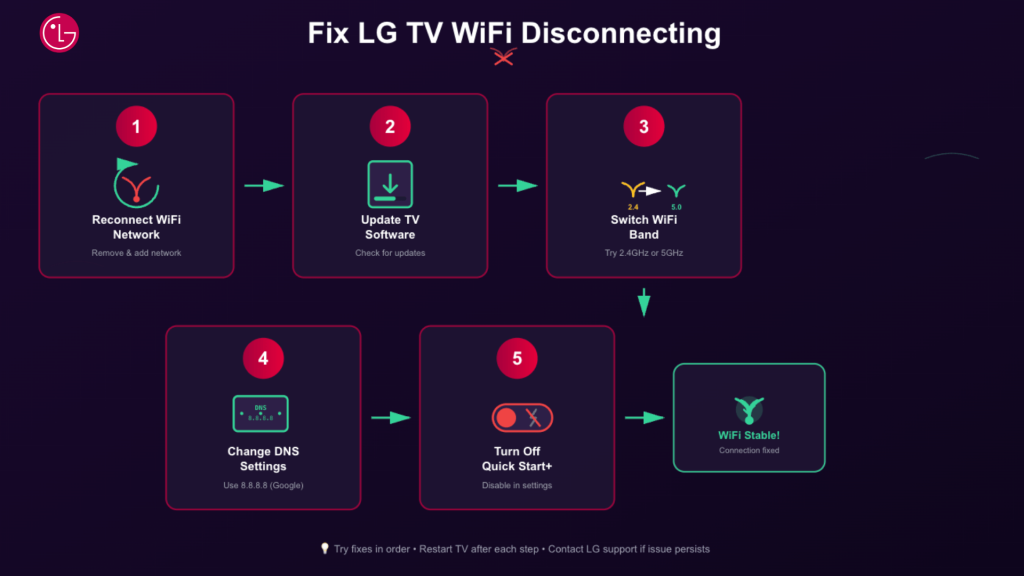
Follow these step-by-step fixes in order to clear network errors, improve stability, and stop your LG TV from losing its WiFi connection repeatedly.
1. Reconnect the WiFi Network on the LG TV
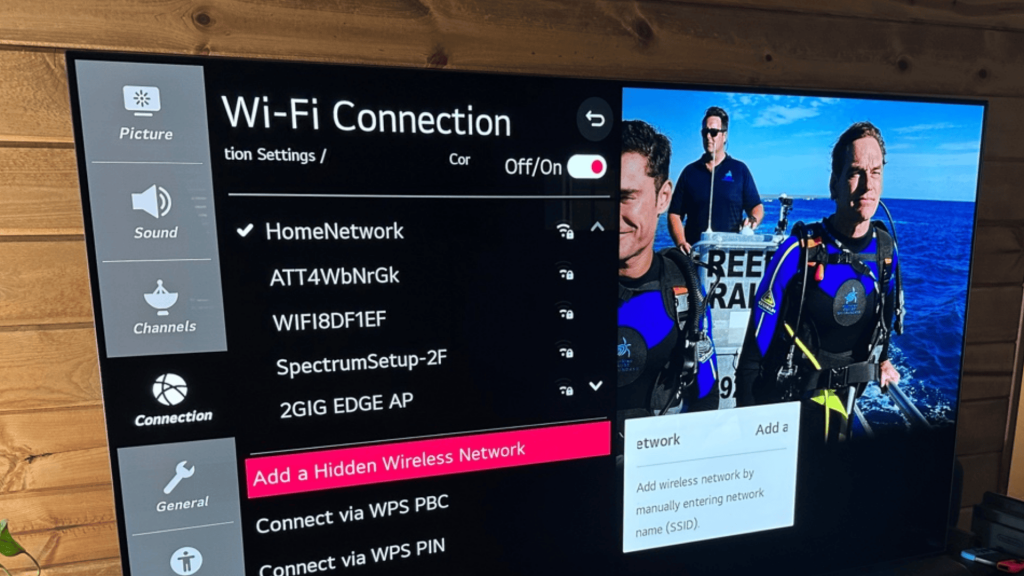
Start by removing the saved WiFi network and reconnecting it. On your LG TV, go to Settings, open Network, then choose WiFi Connection.
Select your current network and remove it. Restart the TV, then reconnect to the same WiFi by entering the password again.
This clears old connection data that may cause drops. Many WiFi issues happen due to corrupted network details, and this step alone often restores a steady connection.
2. Update LG TV Software
Outdated software can cause WiFi problems because it may not support newer network standards.
Open Settings on your LG TV, go to Support, and select Software Update. Check for available updates and install them if found. Keep the TV connected during the update process.
Updates often include fixes for network stability and performance. After updating, restart the TV and reconnect to WiFi to ensure the new system settings apply properly.
3. Switch WiFi Band (2.4GHz or 5GHz)
If your router supports two WiFi bands, switching can improve stability.
The 2.4GHz band works better over longer distances and through walls, while 5GHz offers faster speeds at shorter ranges.
If your TV is far from the router, connect it to the 2.4GHz network.
You can change this by selecting the correct WiFi name in the TV’s network settings. Choosing the right band helps reduce dropouts.
4. Change DNS Settings on LG TV
Automatic DNS settings may fail at times, leading to frequent disconnections. You can fix this by setting a manual DNS.
Go to Network Settings, choose your WiFi connection, and edit advanced options.
Turn off automatic DNS and enter a public DNS like 8.8.8.8 (Google DNS). Save the settings and restart the TV.
This helps the TV connect to the internet more reliably, especially if your internet provider’s DNS is slow or unstable.
5. Turn Off Quick Start+
Quick Start+ allows the TV to turn on faster, but it can interfere with WiFi connections. To disable it, go to Settings, open General, then select Quick Start+.
Turn the option off and restart the TV. When this feature is active, the TV may not fully refresh the network connection after powering on.
Turning it off helps the TV reconnect each time properly, which can stop repeated WiFi disconnect issues.
Router Settings that May Fix the Problem
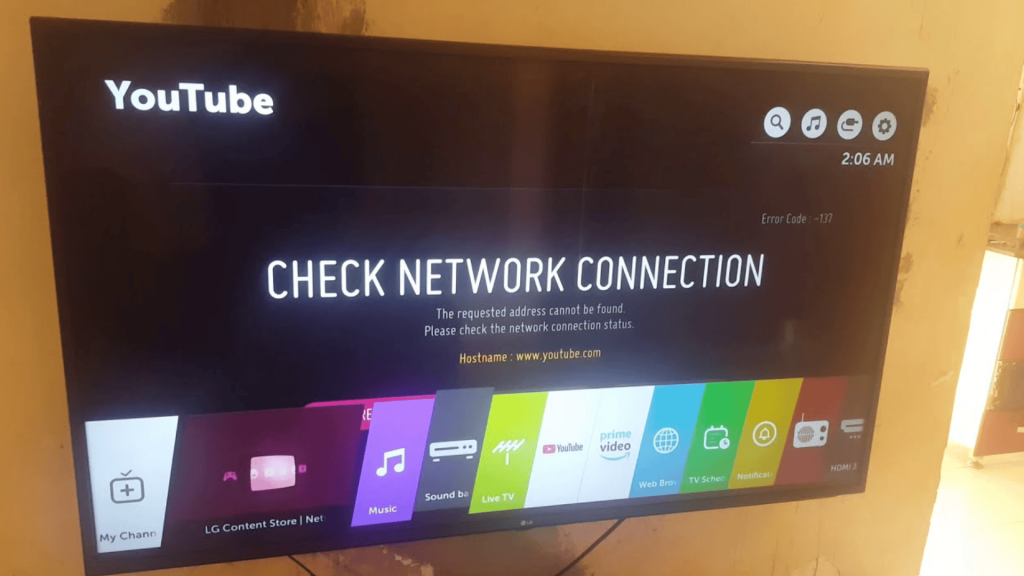
Adjusting a few router settings can improve network stability, reduce signal interference, and help your LG TV maintain a reliable WiFi connection during daily use.
- Update router firmware: Old router software can cause connection drops with smart TVs. Updating it helps improve stability and compatibility with LG TVs.
- Reduce connected devices: Too many devices on the same network can slow it down. Removing unused devices helps the TV maintain a steady connection.
- Change the WiFi channel: Nearby networks can interfere with your signal. Switching to a less crowded channel can reduce WiFi drops.
- Restart the router regularly: Routers can slow down over time. Restarting clears temporary issues and refreshes the network connection.
- Enable Quality of Service: This setting lets you prioritize the TV on your network, helping it stay connected during streaming.
Trying these router setting changes can quickly improve your LG TV WiFi stability and prevent frequent disconnections during streaming and daily use.
Why Switching to Ethernet Fixes LG TV WiFi Problems?
Switching to an Ethernet connection for your LG TV eliminates many Wi-Fi-related issues by providing a direct, stable link to the router.
Unlike WiFi, Ethernet doesn’t rely on signal strength, distance, or interference from walls and other devices.
This results in fewer disconnections during streaming or app use.
With a wired connection, you’ll also experience more consistent speeds, leading to smoother video playback and reduced buffering.
If your router is far from the TV or multiple devices share the same WiFi, Ethernet can make a significant difference.
It offers a reliable, long-term solution, especially if WiFi keeps dropping or slowing down.
For many users, switching to Ethernet is a simple yet effective way to improve their LG TV’s connection and overall performance.
When TV is Not Responsible for the Wi-Fi Problem?
If WiFi issues continue after all fixes, the cause may be outside the TV and require help from your internet provider or hardware support.
- Internet service issues: Short service interruptions from your provider can affect the TV even when settings are correct.
- Router hardware limits: Older routers may not support stable connections for newer smart TVs.
- Modem problems: A faulty or outdated modem can interrupt the internet connection without warning.
- ISP network maintenance: Planned or unplanned work by the provider can cause temporary disconnections.
- Account or service restrictions: Billing or service limits may affect your internet connection unexpectedly.
- External line issues: Damage to cables outside your home can cause repeated connection drops.
If you’ve tried all fixes and the issue continues, contacting your internet provider or hardware support can help solve problems outside the TV itself.
Conclusion
If your LG TV keeps disconnecting from WiFi, it’s often due to settings, outdated software, or network issues.
Following the fixes in this post, you can identify and resolve the problem step by step.
Even small changes, like adjusting your network settings or switching connection types, can significantly improve the connection.
If the issue continues after trying all solutions, reaching out to your internet provider or LG support is a good next step.
They can offer advanced troubleshooting or check for hardware-related problems. Stay patient, as these steps usually lead to a stable connection.
If this post helped you resolve your issue, or if you have additional tips to share, leave a comment below.
Your experience might just help someone else facing the same problem, and together we can make troubleshooting easier for everyone.