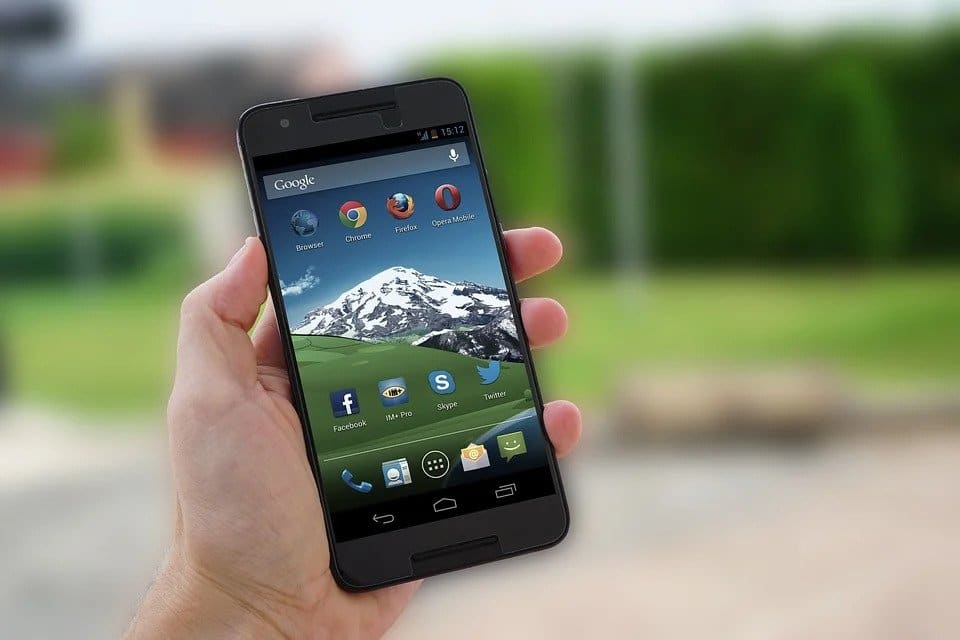
Android phones are becoming more and more technologically capable of producing and storing large media files and documents, and this in turn has meant that they need to have more RAM and storage. Drexel University’s Brain Stuart told the Philly Voice that hardware that’s capable of expanded features, takes higher resolution images and videos, and has faster processing speeds will naturally produce large files. And if you don’t want your phone storage to quickly fill up, the best way to keep your files is to transfer them to another device.
With that being said, we’ve listed below how you can transfer large files from your Android phone.
Connecting to Your PC
Large files take a while to transfer via wireless options, so if you need a fast transfer or your connection is slow, you should directly connect your phone to a computer instead. Simply connect your phone using a USB cable to your computer and then scan your phone’s memory for the file you want to transfer. You can then drag it to a folder in your computer — or if you want to transfer it to another Android phone, click and drag the file to another phone that’s connected to your computer.
Sharing via Local Transfer Apps
If you want to transfer large files to your own or to somebody else’s phone that’s within your vicinity, local transfer apps are the way to go. In fact, some Android manufacturers include a feature like this on their devices. Samsung, for one, has Quick Share, which allows its Galaxy devices to share files with each other instantly. Vivo and Oppo also have a partnership that allows fast transfer between their devices — and more brands like Oneplus, Meizu, and Realme are planning to join in.
But if you want to transfer your files without being limited to other devices with the same manufacturer, you can simply transfer them using local transfer apps. Superbeam and Airdroid are two apps that allow you to share files with other Android devices in the same Wi-Fi network.
Using File Transfer Services
A lot of people still send files over email. While this can be convenient, file sharing through email has a lot of limitations. Most email providers only allow file attachments that are under 10 megabytes and it’s not as secure as other file sharing options. If you want to transfer files remotely from your Android phone, you’ll fare better using file transfer services. These services allow you to upload your files to a server where it stays until the recipient downloads the file. The recipient can then access the file via a link that you shared with them.
File transfer services are incredibly convenient and most allow you to transfer files that are up to 2 gigabytes in size. What’s more, the file transfer services on Box presents how some providers allow collaborators to open multiple file formats without having to download the actual file. This can be very useful if you’re not sure whether your recipient has the same software as you. If you’re transferring sensitive files, be sure to look for added security features like link expiration and download restriction — these will make sure that your files are much more protected from cyber attacks compared to using your email.
It’s easy to transfer large files from your Android phone. The methods we’ve listed above fulfill different file transfer needs — whether you have access to the recipient device or if it’s in another location. But, when using file transfer services, it’s necessary that you scan the file first for malware to make sure that you won’t infect other devices. If you want to know the latest news on Android devices like Lenovo and Mi, feel free to check our homepage.